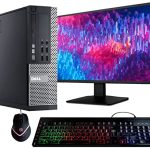
That trusty desktop computer sitting under your desk has served you well for years, but now it groans under the weight of modern software, boots up at a glacial pace, and struggles with tasks it once handled with ease. Before you resign it to the recycling bin and open your wallet for a brand-new system, consider this: a handful of strategic, cost-effective upgrades can transform your aging PC into a responsive and capable machine for years to come. In an era of increasing electronic waste and rising costs, giving your old hardware a second life is not just economical; it's a smart and sustainable computing choice.
This guide is designed to navigate you through the most impactful upgrades for an old desktop in 2026. We will move beyond generic advice to focus on the upgrades that deliver the most noticeable performance boost for the least amount of money and technical complexity. You will learn how to diagnose your system's biggest bottlenecks, prioritize components like Solid State Drives (SSDs) and RAM, and understand when a CPU or GPU upgrade is worthwhile. By the end, you'll have a clear, actionable roadmap to revitalize your computer, whether for work, creative projects, or casual gaming.
Diagnosing Your Desktop: Identifying the Bottleneck
The first and most critical step is to understand what is specifically holding your computer back. Blindly upgrading parts is inefficient and costly. Your system is a chain, and its overall speed is limited by its slowest component, known as the bottleneck. For older desktops, the primary culprits are almost always storage, memory, or a combination of both. To diagnose, simply observe your computer's behavior. Does it take minutes to boot up and open programs? Do applications freeze frequently, especially when you have multiple tabs or programs open? This points strongly to a slow hard disk drive (HDD) and insufficient RAM.
You can use built-in tools to get a precise read. On Windows, open the Task Manager (Ctrl+Shift+Esc) and click on the "Performance" tab. Watch the graphs as you use your computer. If your disk usage is consistently at 100% while your CPU and memory are lower, your HDD is the bottleneck. If your memory is maxed out at 100%, you need more RAM. For a more historical view, the "Performance Monitor" (perfmon) can provide detailed logs. On macOS, the Activity Monitor serves a similar purpose. This data-driven approach ensures your upgrade budget is spent where it will have the most dramatic effect.
Understanding your motherboard's limitations is also key. You need to know what upgrades are even possible. The motherboard dictates the type of CPU, RAM (DDR3 vs. DDR4 vs. DDR5), and storage connectors (SATA vs. M.2 NVMe) you can use. You can find this information by checking your PC's manual, using a system information tool like CPU-Z, or looking up the model number of your pre-built computer (e.g., Dell Optiplex 9020, HP Pavilion 590). This research will prevent you from buying incompatible components and is a non-negotiable first step.
The Single Best Upgrade: Installing a Solid State Drive (SSD)
If you do only one upgrade, make it this one. Replacing an old mechanical Hard Disk Drive (HDD) with a Solid State Drive (SSD) is the most transformative upgrade you can perform on any computer. The difference is not incremental; it's revolutionary. An HDD reads data from a spinning platter with a mechanical arm, while an SSD uses flash memory with no moving parts. This translates to boot times dropping from minutes to seconds, applications launching instantly, and overall system responsiveness that makes an old PC feel brand new.
In 2026, the choice is primarily between SATA SSDs and NVMe SSDs. A SATA SSD (which uses the same cable as your old HDD) will provide a massive speed boost and is compatible with almost any desktop from the last 15 years. An NVMe SSD, which plugs directly into a special M.2 slot on the motherboard, is significantly faster still. However, your motherboard must have an M.2 slot that supports NVMe (common in systems from roughly 2016 onward). For most older systems, a SATA SSD is the perfect, guaranteed-compatible choice. Even a budget 500GB SATA SSD will outperform the fastest HDD.
The upgrade process is straightforward. You will need a cloning software (like Macrium Reflect Free or Clonezilla) to copy your entire operating system, programs, and files from the old drive to the new SSD. Alternatively, you can do a clean installation of your operating system on the new drive for optimal performance. Physically, you'll connect the SSD with a SATA data cable and a SATA power cable from your power supply, mount it in a drive bay, and you're set. Many users opt to keep their old HDD as a secondary drive for bulk file storage, creating a perfect blend of speed and capacity.
Boosting Multitasking: Adding or Replacing RAM
Random Access Memory (RAM) is your system's short-term workspace. When you open a program, it loads from the storage drive into RAM for quick access by the CPU. Insufficient RAM forces your computer to use a portion of your slow storage drive as "virtual memory," leading to severe slowdowns and freezing. Upgrading RAM is often the second-most impactful upgrade after an SSD, especially if you frequently have many browser tabs, office applications, or creative software open simultaneously.
The first rule of RAM upgrades is matching what you already have. You must buy the same generation (e.g., DDR3 or DDR4), speed (e.g., 1600MHz), and ideally the same brand and model for optimal stability. Use CPU-Z to identify your current RAM specs. Most older desktops have two or four RAM slots. If all slots are filled, you'll need to replace the existing sticks with higher-capacity ones. If you have free slots, you can simply add more. For a general-use Windows 10 or 11 PC in 2026, 16GB is the comfortable sweet spot. 8GB is the absolute minimum, and moving from 4GB or 8GB to 16GB will eliminate a huge amount of frustrating lag.
Installation is one of the easiest hardware tasks. After shutting down and unplugging your PC, you press the clips on the sides of the existing RAM slots to release the old sticks. To install new RAM, you align the notch on the stick with the notch in the slot and press down firmly on both ends until the clips snap back into place with a satisfying click. It requires more confidence than force. Once booted, you can verify the new RAM is recognized in your system properties or Task Manager. This simple, low-cost upgrade can dramatically improve your day-to-day workflow.
Advanced Upgrades: CPU, GPU, and Power Supply
Upgrading the Central Processing Unit (CPU) or Graphics Processing Unit (GPU) is more complex, costly, and limited by your motherboard's compatibility. A CPU upgrade can improve raw processing power for tasks like video encoding, complex calculations, and some games, but it must match your motherboard's socket (e.g., LGA 1151, AM4). You must research your specific motherboard model to see which CPUs it supports via its "CPU compatibility list." Often, the performance gain from a compatible but still-older CPU may not justify the cost compared to a newer platform.
A GPU upgrade is the key to unlocking modern gaming, video editing, and AI acceleration. For systems with only basic integrated graphics, adding a dedicated GPU is a game-changer. However, you must consider physical space inside your case, the power demands of the new GPU, and the capability of your Power Supply Unit (PSU). Many older pre-built desktops have low-wattage, proprietary PSUs that cannot support a powerful modern graphics card. You may need to upgrade the PSU as well, which involves ensuring it fits your case and has the correct connectors for your motherboard and new components.
Before embarking on these core upgrades, perform a careful cost-benefit analysis. The combined price of a new CPU, GPU, and PSU for an old system can sometimes approach the cost of a new, more efficient, and fully warrantied modern desktop or motherboard/CPU/RAM combo. These upgrades are most worthwhile if your motherboard supports a late-generation CPU for its socket, if you have a standard-sized case and PSU, or if you are repurposing the old system for a specific task like a home media server or light gaming rig.
The Finishing Touches: Peripherals and Maintenance
Don't overlook the interface between you and your newly upgraded machine. An old, low-resolution monitor can mask the improvements you've made internally. Upgrading to a modern 1080p or 1440p IPS panel will provide better color accuracy, wider viewing angles, and reduce eye strain. A solid-state keyboard or a more precise mouse can also improve your daily comfort and efficiency. These peripherals can be carried forward to your next computer, making them excellent long-term investments.
Physical maintenance is crucial for an older system that has accumulated years of dust. Dust acts as an insulator, trapping heat and causing components to throttle their performance to avoid damage. Power down, unplug, and open your case in a well-ventilated area. Use a can of compressed air to gently blow dust out of heatsinks, fans, and power supplies. Avoid using a vacuum cleaner, as it can generate static electricity. While you're inside, consider adding a case fan or two if you have free headers on your motherboard; improved airflow can significantly lower operating temperatures and increase component longevity.
Finally, ensure your software environment is as optimized as your hardware. After your upgrades, perform a clean installation of your operating system if you cloned your old drive. This eliminates software bloat and potential driver conflicts. Update all your drivers, especially for new components like a GPU. Regularly manage your startup programs to prevent unnecessary applications from slowing down your boot time. With clean hardware and lean software, your revitalized desktop will deliver a computing experience that rivals new, budget-friendly systems.
Key Takeaways
- ✓ The most impactful and cost-effective upgrade for any old desktop is replacing a mechanical Hard Disk Drive (HDD) with a Solid State Drive (SSD).
- ✓ Adding more RAM is the second-best upgrade to eliminate multitasking lag; aim for 16GB as the modern sweet spot for general use.
- ✓ Always diagnose your system's bottleneck using tools like Task Manager and research your motherboard's compatibility before purchasing any components.
- ✓ CPU and GPU upgrades are more complex and limited by your motherboard and power supply; they require careful cost-benefit analysis versus a new system.
- ✓ Physical maintenance (cleaning dust) and peripheral upgrades (monitor, keyboard) are essential finishing touches to fully realize your desktop's renewed potential.
Frequently Asked Questions
How do I know if my old desktop is even worth upgrading?
It's worth upgrading if the core system (motherboard, case, power supply) is functional and the cost of upgrades (SSD, RAM) is significantly less than a new PC. If your computer is over 10 years old or uses very outdated components (like DDR2 RAM), the upgrade path may be too limited to be worthwhile. A general rule: if it ran Windows 10 adequately, it can be revitalized for Windows 11 with the right upgrades.
Can I upgrade a pre-built computer from Dell, HP, or Lenovo?
Yes, but with more constraints. Pre-built systems often use proprietary motherboards, power supplies, and cases. RAM and SSD upgrades are almost always possible. CPU upgrades may be limited by the motherboard's BIOS. GPU upgrades are often limited by the physical size of the case and the wattage of the included power supply. Always check the manual and specifications for your exact model.
Is it better to clone my old drive or do a fresh Windows install on a new SSD?
A fresh install is almost always better for performance and stability. It removes old software bloat, corrupted files, and driver conflicts. Cloning is faster and preserves all your files and settings exactly, which is convenient. If you clone, use the opportunity to clean up files and uninstall unused programs afterward. For the absolute best result, back up your data and perform a clean install.
What tools do I need to perform these upgrades?
You primarily need a single Phillips-head screwdriver. An anti-static wrist strap is recommended but not strictly necessary if you periodically touch the bare metal of your case while working. For drive cloning, you'll need SATA data cables (often included with a new SSD or motherboard) and cloning software. A flashlight and a can of compressed air are also helpful for maintenance.
My computer is slow but I use it mostly for web browsing and email. What should I upgrade first?
For basic tasks, the SSD is still the number one priority. The slowness you experience loading web pages, opening email clients, and booting up is overwhelmingly due to storage speed. Pairing an SSD with at least 8GB of RAM will create a perfectly responsive machine for web-based tasks and office applications for years to come.
Conclusion
Revitalizing an old desktop computer is a rewarding project that blends technical satisfaction with financial and environmental wisdom. By systematically diagnosing bottlenecks, prioritizing a Solid State Drive and additional RAM, and carefully considering more advanced component swaps, you can extract years of additional service from your existing hardware. The transformation from a sluggish, frustrating machine to a snappy, reliable workhorse is profound and achievable for most users with a modest budget and some careful research.
Take the first step today. Download a system information tool, open your Task Manager, and identify your PC's primary weakness. Start planning your SSD purchase—the single most effective upgrade on the table. With the guidance outlined here, you have a clear path to bypass the landfill, save money, and enjoy a high-performance computing experience on your own terms. Your old desktop has plenty of life left; you just need to give it the right tools.

Nathaniel Foster is an electronics expert focusing on consumer gadgets, smart devices, and innovative technology. He delivers practical reviews, buying guides, and troubleshooting tips to help readers make informed decisions and get the most out of their electronic products.