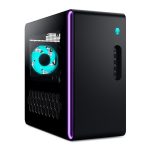
You press the power button, hear the familiar whir of fans, see the LEDs light up, but your monitor remains a dark, silent void. That moment of panic when your computer screen refuses to display anything is a universal tech nightmare, cutting you off from your work, entertainment, and digital life in an instant. Whether it's a brand-new gaming rig or a trusted office workstation, a blank screen is a symptom with a multitude of possible causes, ranging from the trivial to the serious.
This guide is your systematic troubleshooter for 2026. A non-displaying monitor isn't just an inconvenience; it can signify hardware failure, compatibility issues, or simple misconfigurations that waste time and money if misdiagnosed. You will learn a logical, step-by-step diagnostic approach to isolate the problem, understand the most common culprits from cables to GPUs, and apply practical fixes that can resurrect your display without an expensive service call. We'll move from the simplest checks to more advanced solutions, empowering you to solve the problem efficiently.
The First Response: Immediate and Simple Checks
Before diving into complex hardware diagnostics, always start with the fundamentals. These basic checks resolve a significant percentage of "black screen" issues and require no technical expertise. First, verify the obvious: is the monitor actually turned on? Look for a power LED, which is often a small white, blue, or orange light on the front or bottom bezel of the monitor. If there's no light at all, ensure the power cable is firmly connected at both the monitor and the wall outlet or power strip. Try a different outlet to rule out a power source issue. For laptops, ensure it's not just in an extreme battery-saving mode; hold the power button down for 15 seconds to force a hard reset.
Next, scrutinize your video cables. In an era where DisplayPort, HDMI, USB-C, and legacy connections coexist, a loose cable is a prime suspect. Power everything down completely, then disconnect and firmly reconnect the video cable at both the computer and the monitor ends. Inspect the cable and ports for any obvious physical damage or bent pins. If possible, try a different cable of the same type. A common oversight is connecting the cable to the wrong port on the computer; if your CPU has integrated graphics, ensure the cable is plugged into the dedicated graphics card's output (usually lower on the case) and not the motherboard's video ports.
Finally, perform a basic input source check. Modern monitors often have multiple input channels (HDMI 1, HDMI 2, DisplayPort). Use the monitor's physical buttons to open its On-Screen Display (OSD) menu and manually cycle through the available input sources. The monitor may be working perfectly but is simply looking for a signal on the wrong input. If you can see the OSD menu but not your computer's signal, the issue is almost certainly with the connection, source device, or its settings, not the monitor's display hardware itself.
Isolating the Component: Monitor, Cable, or Computer?
Once the basics are ruled out, the next step is to isolate which component in the chain is failing. This process of elimination is critical. Begin by testing the monitor with a known-good source. Connect the monitor to a different computer, a game console, or a streaming device using a known-working cable. If the monitor displays the image from this alternate source perfectly, the monitor is exonerated, and the problem lies with your original computer or its specific connection.
If you don't have a second source, test the computer with a known-good display. Connect your computer to a different monitor or television using a reliable cable. If the second display works, your original monitor is likely faulty. Pay attention during this test: if the second display also fails to show an image, the problem is confirmed to be with the computer itself. For laptops, this test is simpler: does the laptop's built-in screen work? If the external monitor is blank but the laptop screen works, the issue is with the cable, the monitor, or the laptop's external display settings.
This isolation step also includes listening and observing. When you power on the computer, listen to the beeps from the internal speaker (if present) or observe the pattern of lights on the motherboard. Many systems use audible beep codes or diagnostic LEDs (often labeled CPU, DRAM, VGA, BOOT) to indicate where a failure occurs during the Power-On Self-Test (POST). A series of beeps or a solid/v blinking light on the VGA indicator points directly to a graphics subsystem failure, guiding your next steps.
Delving into the Computer: Hardware and Internal Connections
If the fault is isolated to the computer, internal hardware is the next frontier. For desktop users, this means opening the case. First, ensure all internal power connections are secure. A dedicated graphics card requires direct power from the Power Supply Unit (PSU) via 6-pin or 8-pin PCIe connectors; if these are loose, the GPU may not function. Reseat the graphics card by removing it from its PCIe slot and firmly reinserting it, ensuring it clicks into place. Similarly, reseat the RAM modules, as faulty or improperly seated memory can prevent a successful POST and subsequent display.
The graphics card itself could be the issue. If your CPU has integrated graphics, perform a crucial test: remove the dedicated graphics card entirely and connect your monitor directly to the motherboard's video output. If the system boots and displays normally, the dedicated GPU, its drivers, or its power supply is the likely culprit. You can try reinstalling the GPU after this test. For laptops, hardware diagnostics are more limited, but you can try booting into the BIOS/UEFI (often by pressing F2, Del, or F12 during startup) to see if a basic display appears there, which can rule out operating system issues.
Also, consider component compatibility and failure. In 2026, with new generations of CPUs, motherboards, and GPUs, a blank screen can occur if the motherboard's BIOS is outdated and doesn't support the installed CPU. Furthermore, a failing Power Supply Unit (PSU) may not provide stable power to the GPU, causing intermittent or total display failure. Listen for unusual noises from the PSU and smell for any burning odors, which are clear signs of hardware failure.
The Software and Firmware Layer: BIOS, Drivers, and OS
When hardware seems functional, the problem may lie in software or firmware. A corrupted graphics driver or incorrect display settings can cause a black screen, especially after an update. If you can, boot the computer into Safe Mode. For Windows, this often involves interrupting the boot process three times to trigger the Automatic Repair menu, from which you can access Safe Mode. Safe Mode loads a basic display driver. If the screen works in Safe Mode, a faulty graphics driver is the prime suspect. Use Device Manager to roll back or uninstall the current display driver and install a fresh version from the manufacturer's website.
Firmware issues are another layer. A corrupted BIOS/UEFI settings can prevent a proper boot. Resetting the CMOS (Complementary Metal-Oxide-Semiconductor) clears these settings back to factory defaults. On a desktop, this is done by either using a jumper on the motherboard, pressing a dedicated button, or removing the coin-cell battery for a few minutes. For laptops, consult the manual, as the process can be more model-specific. This reset will not delete personal files but will revert all BIOS settings, which can resolve boot conflicts.
Operating system corruption can also manifest as a black screen with a cursor or just a black screen. The Windows Recovery Environment (WinRE) can be a lifesaver. Use a bootable USB installation drive to access repair options like "Startup Repair," "System Restore" to a previous point, or a "Reset this PC" (keeping your files) option. These tools can fix underlying OS issues without a full wipe. For other operating systems, similar recovery modes or live USBs can be used to diagnose disk and system health.
Advanced Scenarios and Professional Considerations
Some scenarios require more specialized knowledge or point to definitive hardware failure. One advanced check is testing with a POST card, a diagnostic tool that plugs into a motherboard slot and displays error codes, providing a precise readout of where the boot process halts. While not a common household tool, it's the professional's method for diagnosing deep-seated motherboard, CPU, or RAM issues that cause a blank screen. For the average user, this step indicates it's time to consult a professional.
Another complex scenario involves multi-GPU setups or high-refresh-rate monitors. A blank screen can occur due to incorrect settings in the GPU control panel (like NVIDIA Control Panel or AMD Adrenalin) that the monitor cannot handle. Using a different, basic monitor to access these settings and revert them to default can solve this. Furthermore, with the rise of adaptive sync technologies (G-Sync, FreeSync), ensuring your cable is high-quality and certified for the bandwidth you're pushing (e.g., HDMI 2.1 for 4K at high refresh rates) is essential.
Finally, know when to seek help. If you've methodically gone through all previous steps—checked cables, isolated components, reseated hardware, reset BIOS, and attempted software repairs—and the screen remains black, the likelihood of a serious hardware failure is high. This could be a dead GPU, a failed motherboard, or a faulty PSU. At this juncture, taking the system to a reputable repair shop or contacting the manufacturer's support (if under warranty) is the most cost-effective and time-efficient next step, especially for soldered components in modern laptops.
Key Takeaways
- ✓ Always start troubleshooting with the simplest solutions: verify monitor power, check and reseat all cables, and ensure the correct input source is selected.
- ✓ Systematically isolate the faulty component by testing the monitor with another source and the computer with another display.
- ✓ Internal hardware issues like loose GPU/RAM, unplugged power connectors, or component incompatibility are common culprits for desktops.
- ✓ Software problems, including corrupted graphics drivers or incorrect BIOS settings, can cause black screens and are often fixable via Safe Mode or CMOS reset.
- ✓ Persistent black screens after exhaustive troubleshooting typically indicate serious hardware failure, warranting professional diagnosis or repair.
Frequently Asked Questions
My computer turns on, fans spin, but the screen is black. Is my GPU dead?
Not necessarily. While a dead GPU is a possibility, this symptom is more commonly caused by loose cables, incorrect input selection, faulty RAM, or even a motherboard issue. Follow the isolation steps: test with a different monitor and cable first. If you have integrated graphics, remove the dedicated GPU and test. No display even with integrated graphics points to a deeper problem like the CPU, motherboard, or PSU.
I just updated my graphics driver, and now my screen is black. What do I do?
This strongly indicates a driver corruption or incompatibility. Restart your computer and repeatedly press F8 or Shift+F8 (methods vary) to try and boot into Safe Mode. If successful, Safe Mode uses a basic display driver. Go to Device Manager, find your display adapter, and choose "Roll Back Driver" to the previous version. If that fails, uninstall the driver there and restart, letting Windows install a basic driver, then manually download a stable version from your GPU maker's website.
How do I reset the BIOS/CMOS if I can't see anything on the screen?
You can reset the CMOS blindly. For desktops, power down and unplug the PC. Open the case and locate the circular CMOS battery on the motherboard. Remove it for 5-10 minutes, then reinsert it. Alternatively, find the two-pin CMOS clear jumper (labeled CLR_CMOS, JBAT1, etc.) and use a metal object to short the pins for a few seconds (consult your motherboard manual first). For laptops, the process is harder; often there's a pinhole button on the bottom, or you may need to disconnect the internal battery.
My monitor says "No Signal" but the computer seems on. What does this mean?
"No Signal" means the monitor is powered on and functioning but is not receiving a valid video signal from the computer. This narrows the problem to the video cable, the video output port on the computer, the graphics hardware inside the computer, or the input port on the monitor. It is a clear sign to check/replace the cable, ensure the GPU is properly seated and powered, and that you've selected the correct input on the monitor.
Can a bad RAM stick cause a black screen?
Absolutely. If the computer fails its Power-On Self-Test (POST) due to faulty or improperly seated RAM, it will not proceed to boot, resulting in a black screen. The system may also power on and off in a loop or emit beep codes. Try reseating your RAM sticks firmly in their slots. If you have multiple sticks, try booting with only one installed at a time, in different slots, to identify if a specific stick or slot is faulty.
Conclusion
A non-displaying computer screen is a disruptive but rarely insurmountable problem. As we've explored, the path to a solution follows a logical escalation: from external connections and simple settings, through component isolation and internal hardware checks, to software diagnostics and firmware resets. This structured approach prevents you from missing simple fixes and helps accurately diagnose more complex failures, saving you time, frustration, and unnecessary expense.
Do not be intimidated by the black screen. Arm yourself with patience and this guide as your roadmap. Start with the first section and move forward only when each step is conclusively ruled out. By understanding the chain from your computer's GPU to your monitor's panel, you transform a moment of panic into a manageable diagnostic procedure. If your journey through these steps ultimately points to a hardware failure, you can consult a professional with confidence, knowing the exact symptoms and tests you've performed, ensuring an efficient and accurate repair.

Nathaniel Foster is an electronics expert focusing on consumer gadgets, smart devices, and innovative technology. He delivers practical reviews, buying guides, and troubleshooting tips to help readers make informed decisions and get the most out of their electronic products.