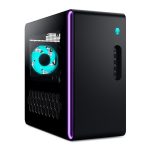
In an era dominated by sleek laptops and powerful phones, the humble desktop computer remains the undisputed champion for serious work, immersive gaming, and creative mastery. It’s the foundation of a reliable, upgradeable, and high-performance digital life.
Yet, navigating the world of desktops—from the initial purchase to years of smooth operation—can feel like a complex technical puzzle. This guide demystifies that process, transforming confusion into confidence.
Whether you’re a first-time buyer, a professional seeking an upgrade, or a current owner wanting to extend your PC’s lifespan, this comprehensive resource is for you. We will walk you through the critical steps of selecting the perfect components for your needs, setting up your system for success, implementing a robust maintenance routine, diagnosing common problems, and planning strategic upgrades.
By the end, you’ll possess the knowledge to make informed decisions and ensure your desktop remains a powerful asset for years to come.
The Strategic Purchase: Building vs. Buying Pre-Built
The first major decision is choosing between a custom-built system and a pre-built desktop from a manufacturer. Building your own PC offers unparalleled customization, often better value for money as you select each component, and a deep understanding of your machine’s inner workings.
It allows you to prioritize exactly what matters, whether that’s a top-tier graphics card for 4K gaming or a massive amount of RAM for video editing. The process is a rewarding project, with countless online tutorials and communities to guide you.
Conversely, buying a pre-built system from brands like Dell, HP, or specialized builders like Maingear or NZXT BLD offers convenience, a single warranty, and professional assembly. This is an excellent choice for those who lack the time, confidence, or desire to build. In 2026, the pre-built market has significantly improved, offering better component transparency and less “bloatware” than in the past.
However, you may pay a premium for labor and sometimes encounter proprietary parts that limit future upgrades.
Your choice hinges on your priorities. For a tailored, cost-effective, and educational experience, build. For a guaranteed-working system with immediate support, buy pre-built. Whichever path you choose, focus on the core components: the Central Processing Unit (CPU) as the brain, the Graphics Processing Unit (GPU) for visuals, sufficient RAM for multitasking, fast storage (prioritize NVMe SSDs), and a quality power supply (PSU) that provides stable, clean power. Never skimp on the PSU or case cooling.
Initial Setup and Optimization: Beyond Plug-and-Play
Once your new desktop arrives or your last component is installed, proper setup is crucial. Begin with the physical placement: ensure your case has ample space for airflow, ideally on a hard, flat surface, not carpet. Connect all peripherals, then power on. If you built the PC, you’ll enter the BIOS/UEFI to confirm all hardware is detected and enable your RAM’s rated speed via XMP or EXPO profiles—a simple but often overlooked performance boost.
The software phase starts with installing your operating system, Windows, Linux, or macOS (on an Apple machine). Immediately after, visit your motherboard manufacturer’s website to download the latest drivers for your chipset, audio, and network controllers. Then, get the latest drivers directly from NVIDIA, AMD, or Intel for your graphics card. This ensures stability, security, and performance. Avoid generic “driver updater” software, as they can cause more problems than they solve.
Finally, optimize for your workflow. Disable unnecessary startup programs in the Task Manager to speed up boot times. Configure Windows Update to be active but not disruptive. Set up a logical file structure on your drives—use your fast SSD for the OS, applications, and current projects, and a larger hard drive or secondary SSD for archives and media. Install essential monitoring software like HWMonitor to keep an eye on temperatures, ensuring your cooling system is functioning correctly from day one.
Proactive Maintenance: The Key to Longevity
Regular maintenance is the single most effective way to prevent problems and extend your desktop’s life. The primary physical task is cleaning. Every 3-6 months, power down, unplug, and open your case. Using a can of compressed air, gently blow dust out of heatsinks, fan blades, and power supply vents (hold the fans to prevent them from spinning). Dust acts as an insulator, causing components to run hotter and louder, which can shorten their lifespan.
Software maintenance is equally important. Regularly update your operating system and critical software for security patches. However, it’s wise to wait a few days after major updates to see if any widespread issues are reported. Use built-in tools like Windows’ Disk Cleanup and the “Storage Sense” feature to automatically remove temporary files. Manage your installed programs and uninstall what you no longer use. Run occasional malware scans with a reputable antivirus program, even if you practice safe browsing.
Monitor your system’s health. Use tools like CrystalDiskInfo to check the SMART status of your storage drives for early signs of failure. Keep an ear out for changes in fan noise, which can indicate dust buildup or a failing bearing. Periodically check that all cables inside the case are still securely connected, especially if you move the desktop. This proactive habit turns potential catastrophic failures into manageable, planned interventions.
Troubleshooting Common Desktop Issues
Even well-maintained desktops can encounter issues. A systematic approach is your best tool. For a PC that won’t power on, start with the basics: Is it plugged in? Is the power supply’s switch on the back in the “I” position? Try a different power cable and outlet. If it powers on but displays nothing (a “no POST” issue), reseat the RAM and graphics card, ensuring they click firmly into place. Listen for beep codes or check diagnostic LEDs on your motherboard, which are invaluable clues.
For system instability like random crashes, freezes, or the infamous “Blue Screen of Death,” the most common culprits are overheating, faulty drivers, or failing hardware. First, check temperatures using monitoring software. If they are high, revisit your cleaning and cooling. Next, boot into Safe Mode and use tools like DDU (Display Driver Uninstaller) to completely remove and reinstall your GPU drivers. Test your RAM with Windows Memory Diagnostic or MemTest86, as bad RAM can cause a wide array of confusing errors.
Performance issues, like sudden slowdowns, often have software origins. Open the Task Manager (Ctrl+Shift+Esc) and sort by CPU, Memory, and Disk usage to identify resource-hogging processes. A disk usage stuck at 100% often points to a failing hard drive or an overwhelmed older SSD. Malware can also cripple performance. If a specific application is problematic, try reinstalling it. The principle is always to isolate the variable: does the problem occur in all programs or just one? This guides your next step.
Strategic Upgrades: Knowing When and What to Improve
One of the desktop’s greatest strengths is its upgradeability. Knowing what to upgrade and when maximizes your investment. The most impactful upgrade for general responsiveness and gaming load times is moving from a hard drive to a Solid State Drive (SSD), or upgrading to a faster, higher-capacity NVMe SSD. This should be a priority for any system still using mechanical storage. Adding more RAM is another high-return upgrade if you frequently run out of memory, causing your system to slow down and use slower disk-based “virtual memory.”
For gaming and creative work, the graphics card (GPU) is typically the primary performance driver. Upgrading your GPU can dramatically increase frame rates and enable higher visual settings. However, ensure your power supply has sufficient wattage and the proper connectors for the new card, and that it will physically fit in your case. The CPU is a more complex upgrade, often requiring a new motherboard and possibly new RAM (if switching to a newer generation), making it a more substantial project akin to a partial rebuild.
Always plan upgrades with your system’s bottleneck in mind. Use performance monitoring tools to see which component is maxed out during your typical tasks. If your GPU is at 100% while gaming but your CPU is at 50%, a new GPU will help. If both are maxed, you may need a balanced upgrade. Furthermore, consider the future: investing in a higher-wattage, high-quality power supply early on can support several generations of component upgrades, making it a wise foundational purchase.
Key Takeaways
- ✓ The choice between building and buying a desktop hinges on your desire for customization/value versus convenience/support; focus on quality core components like the CPU, GPU, RAM, SSD, and PSU regardless.
- ✓ Proper initial setup, including BIOS configuration, direct driver installation, and startup optimization, is critical for achieving stable and peak performance from day one.
- ✓ Proactive physical cleaning every 3-6 months and regular software maintenance (updates, cleanup, health checks) are non-negotiable for system longevity and reliability.
- ✓ Effective troubleshooting follows a logical sequence: check simple connections first, isolate hardware vs. software causes, and use system diagnostics like temperature monitors and memory tests.
- ✓ The most effective upgrades target your system’s specific bottleneck; often an SSD or more RAM, followed by the GPU, with the CPU/motherboard being a more involved platform upgrade.
Frequently Asked Questions
Is building a desktop computer still worth it in 2026, or are pre-builts just as good?
Both are excellent options, serving different needs. Building is absolutely worth it for enthusiasts who want total control over components, often better value, and the satisfaction of the project. Pre-builts in 2026 offer much better quality and transparency than before and are ideal for those who want a guaranteed-working system with a single warranty. The “best” choice depends on your comfort level with technology and your priorities for cost, time, and customization.
How often should I clean the inside of my desktop computer?
A good rule of thumb is every 3 to 6 months, but this depends heavily on your environment. A desktop in a clean, air-conditioned home office may only need attention every 6 months. One in a dustier room, on the floor, or with pets will need cleaning every 3 months or even more frequently. Listen to your fans; if they’re getting louder under load, it’s likely time to clean.
My computer is running slowly. What’s the first thing I should check?
Open your Task Manager (Ctrl+Shift+Esc) and look at the Performance tab. Check if your RAM is near 100% usage or if your disk (especially if it’s a hard drive) is constantly at high activity. Often, the culprit is too many background programs, insufficient RAM, or a nearly full or failing storage drive. Also, check for malware with a reputable scanner.
What is the single best upgrade to improve overall speed?
Replacing a traditional hard disk drive (HDD) with a solid-state drive (SSD) for your operating system and applications is, by far, the most noticeable upgrade for overall system responsiveness. Boot times, application launches, and file transfers will see dramatic improvements. For systems already using an SSD, adding more RAM or upgrading to a faster, larger NVMe SSD are the next best steps.
Should I be worried if my desktop’s fans get loud when I’m gaming or editing video?
Not necessarily. Increased fan noise under heavy load is normal—it means your cooling system is working to expel heat. You should be concerned if the fans are loud at idle, making grinding/rattling noises, or if the system is loud and experiencing performance throttling or crashes. This could indicate dust buildup, a failing fan, or an insufficient cooling solution for your components.
Conclusion
Navigating the lifecycle of a desktop computer, from the initial purchase to ongoing maintenance and upgrades, is a manageable process with the right knowledge. We’ve explored the strategic decisions behind selecting or building your system, the critical steps for proper setup and optimization, the essential routines for proactive maintenance, a logical framework for troubleshooting common issues, and the principles for executing impactful upgrades. This holistic approach ensures your desktop is not just a purchase, but a long-term investment in your productivity and creativity.
Your desktop is a powerful tool, and you are now equipped to be its expert curator. Start by applying one piece of advice from this guide—perhaps scheduling your next cleaning or investigating a minor performance hiccup. Embrace the learning process, consult the vast online communities for support, and enjoy the unparalleled power and flexibility that desktop computing offers. Take control, and build a digital foundation that serves you reliably for years to come.

Nathaniel Foster is an electronics expert focusing on consumer gadgets, smart devices, and innovative technology. He delivers practical reviews, buying guides, and troubleshooting tips to help readers make informed decisions and get the most out of their electronic products.