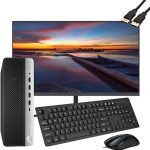
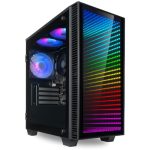
You’re in the middle of an important project, a crucial gaming match, or a video call when suddenly, your desktop computer seizes up. The cursor becomes a stubborn statue, the screen a frozen portrait of your last action. This digital paralysis, known as the desktop freeze, is a universal and deeply frustrating experience that can strike any user, from casual browsers to power professionals. It’s a problem that has evolved with technology, persisting as a common symptom of underlying digital distress.
Understanding why your desktop freezes is more than just a technical exercise; it’s essential for protecting your data, your productivity, and your hardware investment. A freeze is rarely random—it’s your computer’s most dramatic way of signaling that something is wrong. This article will guide you through a systematic, modern approach to diagnosing the root causes of desktop freezes in 2026, moving from simple quick fixes to advanced troubleshooting. You will learn how to interpret freeze patterns, utilize built-in and third-party diagnostic tools, and implement both software and hardware solutions to restore stability and prevent future lock-ups.
Understanding the Modern Freeze: Symptoms and Immediate Actions
A desktop freeze in 2026 can manifest in several distinct ways, and identifying the type is your first diagnostic clue. A hard freeze, or complete lock-up, means the entire system is unresponsive—the mouse and keyboard do nothing, and often the Caps Lock or Num Lock lights on your keyboard won't toggle. A soft freeze might allow your mouse to move but clicks do nothing, and applications won't open or close. Another common type is the repetitive audio freeze, where a sound loop stutters from your speakers while the image on screen is stuck. Each type points toward different potential culprits, from driver failures to hardware overheating.
When a freeze occurs, your immediate action sequence is critical. First, try the basic keyboard command: press Ctrl + Alt + Delete. In Windows 11 or later 2026 systems, this should attempt to bring up the security screen, which can sometimes bypass a superficial application hang. If that fails, give it a full minute; on rare occasions, the system is processing an intensive task and may recover. If there is no recovery, your next step is a forced restart. Hold down the physical power button on your PC for 5-10 seconds until it powers off completely. Wait 30 seconds before pressing it again to reboot. This "hard reset" clears volatile memory (RAM) and can resolve transient glitches.
After rebooting, your investigation begins immediately. Do not ignore the event. First, check the Windows Reliability Monitor (search "View reliability history" in the Start menu). This tool provides a timeline of system errors, crashes, and freezes, often linking them to specific application or Windows updates. Note the exact time of your freeze and see what other critical events occurred around it. This historical data is invaluable for spotting patterns, such as freezes that always happen after a specific program launches or during a particular system task.
The Software Culprits: Drivers, Updates, and Malware
Outdated, corrupt, or incompatible drivers are among the leading causes of system instability and freezing. Drivers are the software that allows your operating system to communicate with hardware components like your graphics card, chipset, and network adapter. A faulty graphics driver, for example, is a notorious culprit for hard freezes, especially during video playback or gaming. In 2026, with the rapid development of hardware, ensuring driver compatibility is more crucial than ever. Use your device manufacturer's website (Dell, HP, Lenovo) or the component maker's site (NVIDIA, AMD, Intel) to download the latest stable drivers, not just the ones provided by Windows Update.
Operating system and application updates can be a double-edged sword. While they provide security patches and new features, they can also introduce bugs or compatibility issues that lead to freezing. If your freezes began shortly after a major Windows update or a new version of a key application, you may have found your culprit. The modern solution in Windows 11 and beyond is to use system restore points or the "Uninstall Updates" feature. You can roll back a problematic update and pause updates for a week while the issue is resolved by Microsoft. Furthermore, conflicting software, especially multiple security suites or low-level system utilities, can fight for resources and cause lock-ups.
Malware and unwanted software remain significant threats. Cryptominers, adware, and sophisticated viruses can consume 100% of your CPU or disk resources, leading to a system that is effectively frozen under the load. In 2026, malware is often more subtle. Use a reputable, updated antivirus program to perform a full system scan. We also recommend running a dedicated anti-malware tool like Malwarebytes for a second opinion. Pay close attention to your system's performance in Task Manager (Ctrl+Shift+Esc) when it's running normally; if you see an unfamiliar process consistently using high CPU, memory, or disk activity, it warrants investigation.
Hardware Health Check: Overheating, RAM, and Storage
Overheating is a primary physical cause of freezes. Modern CPUs and GPUs automatically throttle performance or shut down to prevent damage, but before that critical point, excessive heat can cause system instability and freezing. Dust accumulation inside your desktop case is the usual villain, clogging fans and heatsinks. Download a free monitoring tool like HWMonitor or Core Temp to check your component temperatures under load. Idle temperatures should generally be between 30-50°C (86-122°F), and under heavy load, staying below 80-85°C (176-185°F) for most components is ideal. If temperatures are high, physically clean your PC with compressed air, ensure all fans are spinning, and consider improving case airflow or reapplying thermal paste to the CPU.
Faulty Random Access Memory (RAM) is another classic hardware culprit. When RAM modules develop errors, they corrupt the data being processed by your system, which can quickly lead to a freeze or Blue Screen of Death (BSOD). Windows includes a built-in Memory Diagnostic Tool. Search for it in the Start menu and choose to restart and check for problems. The tool will run a series of tests on your RAM. For a more thorough, multi-pass test, bootable utilities like MemTest86 are considered the industry standard. If errors are found, try reseating the RAM sticks in their slots or testing them one at a time to identify the faulty module.
The shift from Hard Disk Drives (HDDs) to Solid State Drives (SSDs) has reduced, but not eliminated, storage-related freezes. A failing HDD with bad sectors can cause the system to hang as it struggles to read data. Even SSDs can fail or experience firmware issues. Use Windows' built-in CHKDSK utility (run Command Prompt as Administrator and type `chkdsk C: /f`) to check for file system errors. For SSDs, most manufacturers provide free diagnostic software (like Samsung Magician or Crucial Storage Executive) that can check drive health, update firmware, and report on remaining lifespan. A drive showing "Caution" or "Bad" health should be backed up and replaced immediately.
Power and Peripheral Problems: The Often-Overlooked Causes
An inadequate or failing Power Supply Unit (PSU) is a stealthy cause of freezes, especially under load. Your PSU provides stable power to every component. If it cannot deliver consistent voltage or enough wattage when your GPU or CPU demands more power (like during a game or video render), the system can become unstable and freeze. Listen for unusual coil whine or clicking from the PSU. Use an online PSU calculator to ensure your unit's wattage is sufficient for your components. The most reliable diagnostic, however, is to test with a known-good, higher-wattage PSU, which can immediately rule out or confirm power as the issue.
External peripherals and their drivers can be surprising sources of conflict. A faulty USB device, an external hard drive drawing too much power, or a Bluetooth dongle with a bad driver can all cause system-wide freezes. The troubleshooting method here is elimination. Disconnect all non-essential peripherals—printers, external drives, webcams, card readers, etc. Run your computer with just the mouse, keyboard, and monitor. If the freezes stop, reconnect devices one by one over several hours or days of use until the culprit is identified. Pay special attention to legacy devices that may not have updated drivers for modern operating systems.
Internal hardware conflicts, though rarer today, still occur. This can happen when adding new components like a Wi-Fi card, a capture card, or additional storage that conflicts on the PCIe bus or for system resources. A newly installed component that coincides with the onset of freezes is a prime suspect. Enter your system's BIOS/UEFI (usually by pressing F2 or Delete during boot) and check if there are any alerts or if you can load optimized default settings. Sometimes, resetting the BIOS to defaults can resolve instability caused by incorrect settings. Also, ensure all internal cards and cables are seated properly; a loose SATA or power cable can cause intermittent issues.
Advanced Diagnostics and The Nuclear Options
When basic troubleshooting fails, it's time to use advanced built-in tools. The Windows Event Viewer is a powerful log. Search for it in the Start menu, then navigate to Windows Logs > System. Look for critical errors or warnings marked with a red "X" or yellow "!" that occurred at the exact time of your freeze. The error code and source can be cryptic, but a quick web search of the code (e.g., "Event ID 41 Kernel-Power") will often lead to community forums and official documentation pinpointing the cause. Another powerful step is performing a clean boot. Using the System Configuration tool (msconfig), you can disable all non-Microsoft startup items and services, which isolates whether a background program is causing the conflict.
If software seems deeply corrupted, advanced recovery options are your next step. The "Reset this PC" feature in Windows allows you to choose between keeping your personal files or removing everything. Opting to "Keep my files" will reinstall Windows while preserving your documents, photos, and other personal data, though you will need to reinstall your applications. This is often more effective than a simple repair install and can eliminate deep-seated system file corruption or registry errors that cause freezing. Before this, creating a new user account in Windows is a quick test; if the freeze doesn't occur in the new account, the problem is likely with the profile configuration of your main account.
When all else points to a persistent, unresolvable hardware issue or you need immediate stability, the final solution is a clean installation of your operating system on a confirmed-healthy drive. This means backing up all essential data, creating a Windows installation USB using Microsoft's Media Creation Tool, and performing a full format and install. This process eliminates every software variable. If the freezes persist after a clean install on known-good hardware (tested RAM, new SSD, adequate PSU), you are left with a very narrow field of suspects, typically the motherboard or the CPU itself, which would require professional repair or replacement.
Key Takeaways
- ✓ Desktop freezes are a symptom, not a cause; identifying the freeze type (hard, soft, audio loop) is the first critical diagnostic step.
- ✓ Software issues, particularly outdated/faulty drivers, problematic updates, and malware, are among the most common and fixable causes of system instability.
- ✓ Hardware health, specifically overheating components, failing RAM, and deteriorating storage drives, must be systematically checked using monitoring and diagnostic tools.
- ✓ Power supply inadequacy and faulty peripherals are frequently overlooked culprits that require methodical elimination to identify.
- ✓ A structured approach—from immediate reboot and log-checking to clean boots, system resets, and finally clean OS installs—is essential for efficiently resolving persistent freezing problems.
Frequently Asked Questions
My computer only freezes when playing games. What does this mean?
This pattern strongly points to a hardware stress issue. The most likely culprits are an overheating graphics card (GPU) or CPU, an underpowered or failing Power Supply Unit (PSU) that can't handle the peak load, or outdated graphics drivers. Monitor your temperatures with software like HWMonitor while gaming, update your GPU drivers from the manufacturer's website, and ensure your PSU wattage is sufficient for your components.
Can a virus cause my computer to freeze?
Absolutely. Certain types of malware, like cryptominers, are designed to hijack your computer's resources (CPU, GPU) to mine cryptocurrency, often leading to 100% usage and a frozen, unresponsive system. Other adware or spyware can cause conflicts and instability. Run full scans with a reputable, updated antivirus program and a dedicated anti-malware tool like Malwarebytes to rule this out.
I've cleaned my PC and updated drivers, but it still freezes. What next?
It's time to test your hardware systematically. Run the Windows Memory Diagnostic to check your RAM for errors. Use your SSD/HDD manufacturer's tool to check storage health. Test with a different, higher-wattage PSU if possible. Finally, perform a clean boot (disabling all non-Microsoft startup services) to see if a background program is the hidden cause. This process of elimination will isolate the faulty component.
How can I tell if my computer is overheating?
Use free software utilities like HWMonitor, Core Temp, or Open Hardware Monitor. These will show real-time and maximum temperatures for your CPU, GPU, and other sensors. If your CPU or GPU is consistently exceeding 85-90°C (185-194°F) under load, it is overheating. Physically clean dust from fans and heatsinks, ensure all fans are working, and check that your case has adequate airflow.
Is it worth doing a full Windows reset to fix freezing?
A Windows reset (keeping your files) is a highly effective "middle-ground" solution if you suspect deep system file corruption, a problematic update, or conflicting software that you can't pinpoint. It reinstalls Windows while preserving your personal data, though you must reinstall applications. It is a logical step before a full clean install and often resolves software-related freezes without the need for hardware changes.
Conclusion
Desktop freezing is a complex puzzle, but as we've explored, it is almost always a solvable one. By moving from simple observations—like when and how the freeze occurs—to structured investigations of software drivers, system updates, and hardware health, you can systematically eliminate potential causes. The modern computing landscape of 2026 provides us with robust built-in diagnostic tools, from the Reliability Monitor to advanced hardware diagnostics, making it easier than ever to pinpoint the root of instability, whether it's a dusty heatsink, a faulty memory stick, or a rogue software update.
Do not resign yourself to a life of unpredictable freezes and forced restarts. Treat the next freeze not as a frustration, but as the starting clue in your diagnostic process. Begin by checking your system's logs and temperatures, then methodically work through the software and hardware checks outlined here. Your computer's stability is foundational to everything you do with it. By taking a proactive, informed approach, you can thaw "The Great Freeze," achieve a stable system, and gain valuable insight into maintaining your machine's health for years to come.

Nathaniel Foster is an electronics expert focusing on consumer gadgets, smart devices, and innovative technology. He delivers practical reviews, buying guides, and troubleshooting tips to help readers make informed decisions and get the most out of their electronic products.