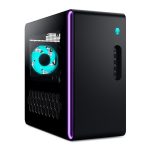
You sit down for an intense gaming session or to render a crucial project, only to be met with sudden shutdowns, jarring fan noise, or a system that feels hot enough to fry an egg. Your desktop is overheating, and it’s not just an annoyance—it’s a direct threat to your hardware’s lifespan and performance. In the era of powerful, compact components, managing thermal output has become one of the most critical aspects of PC ownership.
Understanding and solving desktop overheating matters because it protects your significant investment. An overheated CPU or GPU can throttle its performance, causing frustrating lag and slowdowns precisely when you need power the most. More critically, sustained high temperatures degrade silicon, weaken solder joints, and can lead to permanent, costly hardware failure. This article will guide you through a systematic approach to diagnosing the root cause of your PC’s fever, provide clear, actionable solutions for each scenario, and offer modern preventative strategies to keep your system running cool, quiet, and reliably for years to come.
Understanding the Heat: Why Your Desktop Overheats
At its core, a desktop computer is a sophisticated space heater. The central processing unit (CPU) and graphics processing unit (GPU) convert electrical energy into computational work and, unavoidably, heat. Modern components are designed to operate within specific thermal limits, typically up to 90-100°C for CPUs and GPUs under heavy load, but consistently running near these limits is harmful. The cooling system’s job is to transfer this heat from the component into the air inside the case, and then exhaust that hot air out, maintaining a safe operating temperature. When this heat transfer process fails, temperatures rise uncontrollably.
Several key factors contribute to overheating. The most common is inadequate airflow, caused by a poor case layout, clogged dust filters, or an imbalance between intake and exhaust fans. Another major culprit is an aging or failing cooling solution; thermal paste dries out and loses conductivity over 3-5 years, and air cooler heat sinks can become packed with dust. Furthermore, a sudden onset of overheating often points to a hardware issue like a dead pump in a liquid cooler or a fan that has stopped spinning. Even software can be to blame, with background processes or malware consuming unexpected resources and generating excess heat.
It’s crucial to differentiate between normal operational heat and dangerous overheating. A GPU reaching 80°C during a benchmark is typical, but a CPU idling at 70°C is a red flag. Environmental factors also play a role; placing your PC in a cramped cabinet, on thick carpet, or in a sunlit room with high ambient temperature severely handicaps its cooling capacity. Recognizing these variables is the first step in effective diagnosis.
Diagnosis Before Treatment: How to Identify the Overheating Culprit
You cannot fix what you cannot measure. The first step in any overheating investigation is to gather accurate temperature data. Free software tools like HWMonitor, Core Temp (for CPU), and MSI Afterburner (for GPU) provide real-time and maximum temperature readings for every core and sensor in your system. Note the temperatures at idle (desktop with minimal programs open) and under load (during a game or a stress test like Prime95 or FurMark). A healthy system should idle between 30-50°C and stay under 85°C under sustained full load, depending on the component and cooler.
Next, perform a physical inspection with the power off and unplugged. Open your case and look for obvious issues: thick layers of dust on fan blades, heat sinks, and filters; cables obstructing airflow paths; or fans that are visibly not spinning. Listen during boot-up: a loud grinding or rattling noise from a fan indicates a failing bearing. For liquid coolers, gently touch the pump (usually mounted on the CPU) and the radiator while the system is under load; if the pump is vibrating lightly and the radiator is warm, it’s likely working. If the pump is silent and cold while the CPU overheats, the pump has likely failed.
Finally, correlate software data with physical state. If only one component is overheating (e.g., the CPU but not the GPU), the problem is localized to that component’s cooler or thermal interface. If all components are running hot, the issue is systemic, pointing to poor case-wide airflow or a very high ambient room temperature. This diagnostic triage will direct you to the most effective solution, saving you time and money.
The Clean and Re-paste: Restoring Baseline Cooling Performance
For many desktops, especially those that have been in service for a few years, a thorough cleaning and renewal of thermal paste is the most effective and cost-efficient solution. Dust acts as a thermal insulator, trapping heat on heat sinks and blocking airflow through radiators and fins. Begin by using compressed air to blow out dust, holding fans in place to prevent them from spinning uncontrollably. Remove dust filters and wash them with water, letting them dry completely. Pay special attention to the CPU cooler fins and the GPU’s fan and heat sink assembly, as these are critical heat exchangers.
Once clean, consider replacing the thermal paste. Over time, paste can dry out, crack, and pump out, losing its ability to efficiently transfer heat from the CPU/GPU die to the cooler. To re-paste, carefully remove the cooler, clean off the old paste from both the chip and cooler base with isopropyl alcohol and a lint-free cloth, and apply a fresh, pea-sized dot (or a thin line for modern larger CPUs) of quality thermal paste. Re-seat the cooler evenly, ensuring proper mounting pressure. This simple maintenance can often drop temperatures by 10-20°C on an older system.
This process also applies to graphics cards, though disassembly is more involved and may void the warranty. For GPUs, if temperatures are high but the card is relatively new and clean, first try using software like Afterburner to create a more aggressive custom fan curve. This can force the fans to spin faster at lower temperatures, improving cooling at the cost of slightly more noise. Always prioritize cleaning and re-pasting before investing in new hardware, as it addresses the most common failure points.
Optimizing Airflow and Upgrading Your Cooling Arsenal
If cleaning doesn’t solve the issue, your cooling configuration may need optimization or an upgrade. Proper case airflow follows a simple principle: create a directed, logical path for cool air to enter, flow over components, and exit. The standard and most effective setup is positive pressure: more intake fans (typically at the front and bottom) than exhaust fans (rear and top). This brings in filtered cool air and pushes it out through vents, reducing dust buildup in unfiltered gaps. Ensure intake fans are unobstructed by desks or walls, and that cables are tied back to allow smooth air passage.
When upgrading, start with case fans. Move from basic 3-pin fans to modern 4-pin PWM (Pulse Width Modulation) fans, which allow for finer, quieter speed control via the motherboard. Consider larger fans (140mm or 200mm) which can move the same amount of air as smaller ones at lower RPMs, reducing noise. If component-specific cooling is the issue, evaluate your CPU cooler. A high-quality dual-tower air cooler from brands like Noctua or be quiet! often rivals all-in-one liquid coolers (AIOs) in performance and reliability, with no risk of pump failure.
For extreme heat loads or compact cases, liquid cooling becomes a viable upgrade. A 240mm or 360mm AIO radiator can efficiently expel heat directly out of the case. However, remember that an AIO’s radiator needs access to fresh air; mounting it as an intake will cool the CPU well but will warm the air inside the case for other components. As a rule of thumb, if your GPU is the primary heat source, prioritize case airflow. If your CPU is the primary source and your case supports it, a top- or rear-mounted AIO as exhaust can be very effective.
Advanced Considerations and Long-Term Thermal Management
Sometimes, overheating is a symptom of a deeper configuration issue. One often-overlooked cause is excessive voltage supplied to the CPU or GPU, either by an aggressive factory setting or an unstable manual overclock. Using BIOS/UEFI or GPU tuning software, you can explore undervolting—reducing the operating voltage while maintaining the same clock speed. This advanced technique lowers power consumption and heat output significantly without sacrificing performance, and is a hallmark of savvy system tuning in 2026.
Your computer’s power supply unit (PSU) can also contribute to thermal load. An inefficient, low-quality PSU converts more of its input power into waste heat inside the case. Upgrading to a modern, 80 Plus Gold or Platinum rated unit from a reputable brand not only improves efficiency and stability but also reduces this internal heat burden. Furthermore, manage your software environment: use Task Manager to identify and disable unnecessary startup programs and background processes that cause constant CPU usage, generating heat even at "idle."
Finally, adopt a proactive maintenance mindset. Set a calendar reminder to visually inspect and clean dust filters every 2-3 months. Monitor your temperatures quarterly with the software tools mentioned earlier to establish a baseline and catch any gradual degradation. Consider the thermal design of your next case purchase, prioritizing models with mesh front panels, good cable management, and included high-quality fans. By integrating these practices, you shift from reactive problem-solving to proactive system stewardship, ensuring maximum performance and longevity.
Key Takeaways
- ✓ Overheating is a primary cause of performance throttling and hardware failure, making proactive thermal management essential for protecting your investment.
- ✓ Accurate diagnosis using monitoring software and physical inspection is critical to identify whether the issue is localized (one component) or systemic (poor airflow).
- ✓ Regular maintenance, including thorough dust removal and renewing thermal paste every few years, is the most cost-effective solution for many overheating problems.
- ✓ Optimizing case airflow through a positive pressure setup and strategic fan placement is often more impactful than simply adding more or faster fans.
- ✓ Advanced solutions like undervolting components, upgrading to a more efficient PSU, and managing software bloat can resolve heat issues at their source.
Frequently Asked Questions
What is a safe temperature range for my CPU and GPU?
While specifics vary by model, a general safe guideline is 30-50°C at idle and under 85°C under sustained full load for both CPUs and GPUs. Modern components will automatically throttle (reduce performance) to stay under a maximum TJunction or T-Junction temperature, often around 95-100°C, but consistently operating near this limit accelerates wear and tear.
How often should I clean the inside of my desktop computer?
For most environments, a thorough cleaning every 6-12 months is sufficient. However, you should check and clean removable dust filters every 2-3 months. If you have pets, carpet, or live in a dusty area, you may need to clean the interior more frequently, perhaps every 3-4 months, to prevent significant buildup.
Can I use a vacuum cleaner to remove dust from my PC?
It is not recommended. Vacuums can generate strong static electricity that can damage sensitive electronic components. Instead, use canned air or a dedicated electric air duster designed for electronics. Always hold fans in place while blowing air to prevent them from spinning, which can generate back-current and damage fan controllers.
Is liquid cooling (AIO) always better than air cooling?
Not always. High-end air coolers offer comparable performance to many mid-range AIO liquid coolers, often with less noise, lower cost, and no risk of leakage or pump failure. Liquid cooling excels in specific scenarios: very small cases where a large air cooler won't fit, or when you need to move heat directly to a case edge (like with a top-mounted radiator). For most users, a premium air cooler is an excellent, reliable choice.
My PC is clean and well-cooled but still gets hot in summer. What can I do?
This points to high ambient (room) temperature. Computers can only cool components to slightly above room temperature. Solutions include improving room ventilation, using an air conditioner or a fan to lower the room's ambient temperature, or slightly reducing your PC's power/performance profile during heatwaves through mild undervolting or limiting frame rates in games.
Conclusion
Desktop overheating is a multifaceted challenge, but it is far from an insurmountable one. By understanding the sources of heat, methodically diagnosing the symptoms, and applying solutions ranging from simple maintenance to strategic upgrades, you can regain control over your system’s thermal performance. The journey from a hot, noisy, and throttling PC to a cool, quiet, and powerful machine is built on foundational practices like regular cleaning, paste renewal, and airflow optimization, complemented by modern techniques like undervolting and smart component selection.
Take action today. Download a temperature monitoring tool to establish your baseline, schedule a time for a careful internal inspection and cleaning, and review your case’s fan configuration. Investing a small amount of time and resources into thermal management pays enormous dividends in system stability, component longevity, and uninterrupted performance, ensuring your desktop remains a reliable tool and source of enjoyment for years to come.

Nathaniel Foster is an electronics expert focusing on consumer gadgets, smart devices, and innovative technology. He delivers practical reviews, buying guides, and troubleshooting tips to help readers make informed decisions and get the most out of their electronic products.