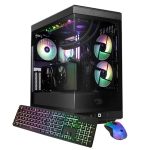
You press the power button, the familiar whir of fans and glow of LEDs confirms your desktop is alive, but your monitor remains stubbornly dark, displaying only a hollow "No Signal" message. This common yet perplexing issue, where a computer powers on but provides no visual output, can strike any user, from casual browsers to hardcore gamers, transforming a productive tool into an expensive paperweight in an instant. The silence of a blank screen is often louder than any error beep, signaling a problem that could stem from a dozen different components.
Understanding why this happens is crucial because it bridges the gap between panic and solution. A non-functional computer disrupts work, entertainment, and communication, but blindly replacing parts is costly and ineffective. This guide will systematically walk you through the diagnostic process, from the simplest cable checks to more complex hardware troubleshooting. You will learn to identify the culprit, whether it's a loose connection, a failing graphics card, or a motherboard issue, and discover actionable steps to restore your display and get back to computing with confidence.
The First Line of Defense: Basic Checks and External Connections
Before diving into internal hardware, always start with the most obvious and easily fixable causes. A significant percentage of "no display" problems are resolved right here, saving you time and unnecessary stress. This process is about eliminating variables, starting with the components outside your PC case. Ensure your workspace is clean, static-free, and that you have adequate lighting to see all connections clearly. Treat this like a pilot's pre-flight checklist; skipping steps can lead you down a rabbit hole of complex troubleshooting for a simple fix.
First, scrutinize your monitor and its connections. Is the monitor definitely powered on? Check for a power LED and ensure it's not in standby mode. Try pressing the monitor's menu button; if a settings menu appears, the monitor is functional, and the problem lies with the signal source. Next, examine the video cable (HDMI, DisplayPort, DVI, or VGA). Ensure it is firmly seated at both ends—at the back of the PC and the monitor. If possible, try a different cable entirely, as cables can fail internally. Also, verify the monitor is set to the correct input source (e.g., HDMI 1, DisplayPort 2) corresponding to the port you're using on the PC.
Finally, consider the power and environment. Is the PC receiving stable power? Try a different wall outlet and ensure the power supply's rear switch is in the "I" or on position. For older homes or during storms, power fluctuations can cause strange behavior. If you have a laptop or another PC, test the monitor with that device to rule out a monitor failure. This simple external swap test is a powerful diagnostic tool. By confirming the monitor and cables work elsewhere, you can confidently shift your focus inward to the desktop itself.
Internal Hardware Diagnostics: RAM, GPU, and CMOS
If external checks yield nothing, the issue lies within the desktop case. At this stage, you'll need to open the chassis, so ensure the PC is powered off and unplugged, and ground yourself to prevent static discharge. The primary suspects here are the RAM (memory), the GPU (graphics card), and the motherboard's BIOS/UEFI settings. These components are critical for the initial boot process and video output initialization. A methodical approach is key; change only one thing at a time between tests.
Begin with the RAM, a common culprit for boot failures. Carefully release the side clips and remove all RAM sticks. Clean the gold contacts gently with a soft, dry cloth or an eraser, then re-seat them firmly, ensuring they click into place. If you have multiple sticks, try booting with only one stick installed, trying each stick in the primary slot (usually labeled A1 or DIMM1 in your motherboard manual). This tests for a single faulty RAM module. Listen for any change in the motherboard's beep codes if it has a speaker, or watch for diagnostic LEDs if your motherboard is equipped with them.
Next, focus on the graphics processing unit. If your CPU has integrated graphics, remove the dedicated graphics card entirely. Plug your monitor cable directly into the video output on the motherboard's I/O panel. If you get a display now, the issue is likely with the dedicated GPU, its power connectors (ensure they are fully plugged in from the PSU), or its PCIe slot. Re-seat the GPU firmly in its slot. For dedicated GPU users, also try a different video output port on the card itself. Finally, reset the CMOS (Complementary Metal-Oxide-Semiconductor). This clears the BIOS/UEFI settings, which can become corrupted. You can do this by either removing the coin-cell motherboard battery for a few minutes while the PC is unplugged or by shorting the CMOS jumper pins as per your motherboard's manual.
Power Supply and Motherboard: The Core Components
When RAM and GPU troubleshooting fails, the problem may involve the core system components: the Power Supply Unit (PSU) or the motherboard itself. These are more complex to diagnose definitively without spare parts, but logical deduction can point you in the right direction. The PSU provides life to all components, and if it's failing or underpowered, it may provide enough juice to spin fans and light LEDs but not enough to properly initialize the CPU and graphics subsystem. The motherboard is the central nervous system; if it's damaged, communication between components breaks down.
To assess the PSU, listen and observe. A failing PSU may emit a faint buzzing or whining sound, or you might notice a burning electronic smell—immediately power down if you detect this. Use the "paperclip test" with extreme caution: with the PSU unplugged, you can short the green wire (PS_ON) to any black wire (ground) on the 24-pin motherboard connector using a paperclip. If the PSU fan spins up, it has basic functionality, but this doesn't guarantee it can deliver stable power under load. The most reliable test is to try a known-good PSU of adequate wattage. For modern systems with powerful GPUs, ensure your PSU is rated for at least 100-150 watts above your system's estimated peak draw.
Motherboard diagnosis is trickier. Look for physical signs of failure: bulging or leaking capacitors (small cylindrical components), burn marks, or damaged traces. Ensure all power cables are securely connected, including the large 24-pin ATX cable and the 8-pin CPU power cable at the top of the board. If your motherboard has diagnostic LEDs or a post-code display, refer to its manual—these are invaluable. A sequence of beeps (if a speaker is installed) also indicates a specific hardware fault. If you've tried a known-good PSU, reseated all components (including the CPU, though this is a last resort), and cleared CMOS, and the system still fails to post with any display, the motherboard or CPU is likely at fault.
Peripheral Conflicts and Advanced Troubleshooting
Sometimes, the culprit is an unexpected conflict with a connected peripheral or a deeper system issue. A faulty or incompatible USB device, storage drive, or even a PCIe add-in card (like a capture card or Wi-Fi adapter) can prevent a successful POST (Power-On Self-Test), halting the boot process before display output begins. This stage of troubleshooting involves stripping the system down to its bare essentials to isolate the conflict. The goal is to achieve a "minimal boot" configuration.
Start by disconnecting all non-essential peripherals. This means unplugging all USB devices (keyboard and mouse included), external hard drives, webcams, and internal drives other than your primary boot drive. If you have multiple storage drives (SSDs, HDDs), disconnect all but the one containing your operating system. Also, remove any non-essential PCIe cards. Your system should now have only the motherboard, CPU, one stick of RAM, the primary boot drive, and the GPU (or integrated graphics). Attempt to power on. If you get a display, you can begin reconnecting devices one by one, rebooting each time, to identify the faulty component.
If a minimal boot still fails, consider hardware compatibility and recent changes. Did you recently update your BIOS/UEFI, install new hardware, or change a critical setting? A failed or interrupted BIOS update can brick a motherboard. If you have a secondary BIOS chip (a feature on some high-end boards), switch to it. Try booting with a different, known-compatible CPU if you have access to one, as a damaged CPU can cause a black screen. For very new hardware, ensure your motherboard BIOS version supports your specific CPU model; you may need to update the BIOS using a USB flashback feature (if available) with no CPU installed.
Systematic Approach and When to Seek Professional Help
The key to resolving the "no display" issue is a calm, systematic, and documented approach. Haphazardly swapping components can introduce new variables and confusion. Keep a notepad or digital document to record each step you take, the component tested, and the result. This log will help you see patterns and avoid repeating steps. It also provides crucial information if you need to escalate the issue to a professional technician or forum community. Patience is your most valuable tool in this process.
Understand the limits of DIY repair. If you have exhausted all logical steps—checked all connections, tested with known-good replacement parts (PSU, RAM, GPU), performed a minimal boot, and cleared CMOS—and the problem persists, the fault likely lies with the motherboard or CPU. Diagnosing and replacing these components requires significant technical skill, specialized tools for CPU re-pasting, and carries risk of damage. Furthermore, if your system is under warranty, opening the case or attempting advanced repairs may void that coverage. At this juncture, seeking professional help is a wise and cost-effective decision.
Weigh the cost of repair against replacement. For an older system, investing in a new motherboard or professional repair service may approach the cost of a new, more efficient computer. A technician will have diagnostic equipment, like PCIe post testers and multimeters, to pinpoint the issue precisely. Whether you choose to repair or replace, the troubleshooting knowledge you've gained is invaluable. It empowers you to communicate effectively with technicians, make informed purchasing decisions for replacements, and potentially fix the issue faster should it ever recur on another machine.
Key Takeaways
- ✓ Always start with basic external checks: verify monitor power, input source, and cable integrity before opening your PC case.
- ✓ Reseating RAM and trying a single stick in the primary slot is a highly effective first internal step to rule out memory issues.
- ✓ Test your graphics subsystem by using integrated graphics (if available) or reseating your dedicated GPU and its power cables.
- ✓ A systematic minimal boot—disconnecting all non-essential drives and peripherals—can isolate conflicts causing boot failure.
- ✓ Know when to stop; if you lack spare parts for testing or suspect a motherboard/CPU fault, seeking professional help is a prudent step.
Frequently Asked Questions
Can a faulty keyboard or mouse really cause a black screen on boot?
Yes, though it's less common. A malfunctioning or shorted USB peripheral can cause the system to hang during the POST (Power-On Self-Test) process before it initializes the display. This is why a minimal boot, which includes removing all USB devices, is a key diagnostic step. Try booting with only the display cable and power connected.
My PC was working fine, then I moved it, and now I have no display. What's the most likely cause?
This almost always points to a loose internal connection caused by jostling. The most common culprits are the graphics card partially dislodging from the PCIe slot or a RAM stick becoming loose. Open the case and firmly reseat the GPU, RAM, and all power cables (both on the motherboard and from the PSU to components).
What do the beep codes from my motherboard mean?
Beep codes are your motherboard's way of telling you what's wrong during the POST. A single short beep typically means a successful boot. A series of short or long beeps indicates a specific failure, like missing RAM, a GPU error, or a CPU problem. The exact pattern meanings vary by manufacturer (AMI, Award, Phoenix), so you must consult your motherboard's manual or the manufacturer's website with the beep code sequence.
I see my motherboard's brand logo but then the screen goes black. Is this the same issue?
This is a related but distinct problem. A power-on with no signal at all is a "hard" boot failure. Seeing a logo or BIOS screen before a black screen indicates the system is posting but then failing during the operating system load. This points to issues with your boot drive, its connection, corrupt OS files, or sometimes a failing GPU driver. Troubleshooting would focus on the storage drive and OS.
Is it safe to reset the CMOS by removing the battery?
Yes, it is a standard and safe procedure, provided you take precautions. Ensure the desktop is completely powered off AND unplugged from the wall. Hold the power button for 10 seconds to discharge any residual current. Then, carefully remove the coin-cell battery (usually a CR2032) for 3-5 minutes before reinserting it. This resets BIOS settings like boot order and XMP profiles to factory defaults.
Conclusion
Diagnosing a desktop that powers on but offers no display is a journey from the simple to the complex, a process of elimination that tests both your patience and your problem-solving skills. We've navigated from the foundational checks of monitor cables and power, through the internal landscape of RAM, GPU, and CMOS, to the core components of PSU and motherboard, and finally into the realm of peripheral conflicts and advanced diagnostics. Each step builds upon the last, systematically isolating the faulty component. Remember, the vast majority of these issues are resolvable without professional intervention, often stemming from loose connections or easily swappable parts like RAM or a video cable.
Armed with this structured approach, you can transform a moment of frustration into an opportunity for learning and empowerment. Do not be intimidated by the interior of your computer; view it as a logical puzzle waiting to be solved. Start with the simplest solutions, document your process, and proceed with care. If you reach the limit of your comfort or tools, there is no shame in consulting a professional—the knowledge you've gained will make you an informed partner in the repair process. Now, take a deep breath, grab a screwdriver, and let's get that screen lit up again.

Nathaniel Foster is an electronics expert focusing on consumer gadgets, smart devices, and innovative technology. He delivers practical reviews, buying guides, and troubleshooting tips to help readers make informed decisions and get the most out of their electronic products.