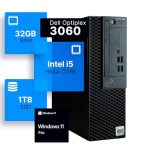
You've just unboxed a gleaming new desktop PC. The hardware is powerful, the screen is crisp, and the potential feels limitless. But as you stare at the bare desktop, a quiet question arises: "Now what?" The truth is, a new computer is merely a sophisticated shell until you equip it with the software that transforms it from a collection of components into your personal command center for work, creativity, and play.
This guide is your curated roadmap through the vast landscape of available software. We will move beyond the basics to explore the essential categories of programs that will secure your system, boost your productivity, unleash your creativity, and ensure seamless operation in 2026. You will learn not just what to install, but why each category is critical and how to choose the best options for your specific needs, whether you're a student, a professional, a content creator, or a casual user. Let's build your digital foundation.
The First Line of Defense: Security and Maintenance Suites
Before you download anything else, your first priority must be protecting your investment. A new PC is a clean slate, and keeping it secure and running smoothly is non-negotiable. This starts with a robust, modern security suite. In 2026, built-in options like Windows Defender have evolved significantly, but for comprehensive protection, consider a third-party solution that offers real-time malware detection, a robust firewall, phishing protection, and often includes valuable extras like a password manager or VPN service. Look for software that emphasizes behavioral analysis and AI-driven threat detection to combat zero-day attacks.
Beyond antivirus, system maintenance tools are essential for long-term health. These programs help manage startup items that slow down boot times, clean temporary and junk files that accumulate over weeks of use, update outdated drivers for your hardware, and monitor system temperatures and performance. For example, a good maintenance tool can automatically find and install the latest graphics driver for your GPU, ensuring you get the best performance in games and creative applications. Think of it as routine maintenance for your car; it prevents major breakdowns.
Your actionable strategy should be a two-pronged approach. First, install a reputable security suite from a known provider (options like Bitdefender, Kaspersky, or Norton are consistently top-rated). Second, complement it with a dedicated, reputable maintenance tool like CCleaner or a built-in PC health check tool. Crucially, avoid downloading "cleaner" or "optimizer" programs from unknown sources, as these are often malware in disguise. Schedule weekly quick scans and monthly deep cleans to keep your system pristine.
The Productivity Powerhouse: Office Suites and Communication Tools
For most users, a PC is a tool for getting things done. At the heart of this is a reliable office suite. While Microsoft Office 365 (now likely integrated even deeper with cloud AI co-pilots) remains the industry standard, excellent free alternatives have become incredibly powerful. Suites like LibreOffice and OnlyOffice offer fully-featured word processors, spreadsheets, and presentation software compatible with most file formats. Your choice here depends on your needs: deep Microsoft ecosystem integration or a capable, cost-free solution.
Parallel to document creation is communication. In 2026, seamless communication is expected. This means installing a capable web browser like Chrome, Firefox, or Edge (which often comes pre-installed) and tailoring it with essential extensions like an ad-blocker and a password manager. Next, equip yourself with communication clients. A universal messaging app like Discord or Slack is vital for community and team chats, while a dedicated video conferencing tool like Zoom or Microsoft Teams is essential for professional and personal calls. Do not rely solely on web versions; desktop clients offer better performance and features.
To implement this, start by choosing your primary office suite. If your work or studies require specific Microsoft Office features, a subscription may be worthwhile. Otherwise, LibreOffice is a fantastic first install. For communication, audit your needs: if you game or are part of online communities, Discord is a must. For professional life, Teams or Zoom will be necessary. Pin these applications to your taskbar or start menu to create an instant productivity dock. Finally, organize your browser by creating bookmarks folders for your most-visited work, news, and entertainment sites.
The Creative Arsenal: Media, Design, and Content Creation Software
Your new PC's powerful hardware is begging to be used for creation. This category turns your machine into a studio. Begin with media management and playback. A versatile media player like VLC is non-negotiable—it plays virtually every audio and video format without needing additional codecs. For photo management and basic editing, consider free, powerful tools like IrfanView for quick edits and viewing, or step up to Adobe Lightroom for serious photography. In 2026, cloud-synced photo libraries are standard.
For more advanced creation, the software landscape is rich. If you're interested in graphic design, free tools like GIMP (a Photoshop alternative) and Inkscape (for vector graphics) are incredibly capable. For video editing, DaVinci Resolve stands out as a professional-grade tool with a robust free version that rivals paid competitors. For music production or podcasting, Audacity remains a stellar free, open-source audio editor for recording and mixing. These tools democratize high-end creative work.
Your approach should be need-based exploration. Don't install every creative suite at once. Start with VLC and a photo organizer. If you have a specific project—like editing a vacation video or designing a logo—then download DaVinci Resolve or GIMP. Utilize the vast tutorial ecosystems on YouTube for these programs; a single weekend of guided learning can unlock tremendous potential. Remember, creative software can be resource-intensive, so monitor your system's performance (using tools from Section 1) to ensure a smooth experience.
The Utility Belt: File Management, Compression, and Cloud Storage
Efficiently managing your digital files is a superpower. The default Windows File Explorer, while improved, can be supercharged. Install a file manager like Directory Opus or even the free Files app from the Microsoft Store. These offer dual-pane views for easy drag-and-drop, advanced search, bulk renaming tools, and better network drive support. Mastering a powerful file manager saves hours over the lifetime of your PC by streamlining organization.
Next, you will inevitably encounter compressed files. 7-Zip is an essential, free, open-source tool that handles ZIP, RAR, TAR, and many other archive formats. It integrates into your right-click menu for quick compression and extraction, saving you from the hassle of limited or trial-ware tools. Alongside local file management, cloud storage integration is crucial. Services like Google Drive, Dropbox, or Microsoft OneDrive offer desktop clients that create synced folders on your PC, providing both backup and easy access to files from other devices.
To put this into practice, immediately install 7-Zip. Then, choose your primary cloud service (often dictated by your email or office suite) and install its desktop sync client. Set up the synced folder to house your key documents and projects. Finally, spend an hour organizing your main user folders (Documents, Pictures, Downloads) into a logical sub-folder structure. Use your new file manager to do this quickly. This upfront investment in organization pays massive dividends in reduced frustration when you need to find a specific file months from now.
Personalization and Performance: Drivers, Tweaks, and Leisure
Finally, make the PC truly yours through personalization and ensure it performs at its peak. Start with drivers. While Windows Update handles basics, visit the websites of your key component manufacturers—NVIDIA/AMD for your graphics card, your motherboard manufacturer for chipset drivers, and your PC brand for any specific utilities. Downloading the latest drivers can resolve bugs, improve stability, and unlock performance, especially for gaming and creative tasks. Use the maintenance tools from Section 1 to check for updates periodically.
Personalization extends to your desktop environment. Explore the Windows Personalization settings deeply. Use dynamic wallpapers, organize your Start Menu with live tiles or a simplified layout, and adjust your taskbar preferences. For more advanced customization, tools like Rainmeter allow you to add functional desktop widgets (clocks, system monitors, calendars). However, exercise caution with deep system tweaking utilities; the performance gains are often minimal and stability risks can be high.
For leisure, this is where you install your digital storefronts: Steam, Epic Games Store, or GoG for games; Spotify or Apple Music for audio streaming; and any other hobby-specific software. The key here is intentionality. Avoid cluttering your system with every available app. Use the "Apps & Features" setting in Windows to periodically review and uninstall programs you no longer use. A clean system is a fast and enjoyable system. Your new PC is now not just functional, but a personalized, powerful extension of your workflow and interests.
Key Takeaways
- ✓ Security is the non-negotiable first step; install a reputable security suite and system maintenance tool before anything else.
- ✓ A capable office suite and tailored communication clients (browser, chat, video call) form the core of your productivity ecosystem.
- ✓ Free, professional-grade creative software like DaVinci Resolve, GIMP, and Audacity can transform your PC into a powerful studio for media and content creation.
- ✓ Enhance your efficiency with utility software, including a powerful file manager, 7-Zip for archives, and a cloud storage sync client for backup and accessibility.
- ✓ Finalize your setup by updating hardware drivers, personalizing your desktop environment, and intentionally installing leisure software to keep your system clean and fast.
Frequently Asked Questions
Is the built-in Windows Security (Defender) good enough, or do I need a paid antivirus?
In 2026, Windows Security provides solid baseline protection against most common threats. For most cautious users who practice safe browsing habits, it can be sufficient. However, a comprehensive paid suite offers significant advantages: more robust real-time behavioral analysis, enhanced firewall controls, phishing protection across more applications, and bundled utilities like secure VPNs, password managers, and parental controls. If your PC handles sensitive work, financial data, or you want maximum peace of mind, a paid suite is a worthwhile investment.
What is the best free alternative to Microsoft Office?
LibreOffice is widely considered the best free, open-source office suite. It includes applications fully comparable to Word (Writer), Excel (Calc), and PowerPoint (Impress). It handles most common file formats, including opening and saving in Microsoft's formats (.docx, .xlsx). The interface may feel slightly different, but its power and cost (free) are unmatched. OnlyOffice is another excellent alternative with an interface that more closely mimics modern MS Office.
I want to edit videos. Is DaVinci Resolve really free, and what's the catch?
Yes, DaVinci Resolve has a fully-featured free version that is remarkably powerful. The "catch" is that the free version lacks some advanced features found in the paid Studio version, such as neural engine filters, stereoscopic 3D tools, and support for multiple GPUs for faster rendering. However, for 90% of users—from beginners to advanced hobbyists—the free version offers professional-grade color correction, audio post-production, and editing tools with no watermarks or time limits. It's the best place to start.
How do I know which drivers I need to update for my new PC?
Focus on a few key drivers for performance and stability. First, your graphics driver (from NVIDIA or AMD) is crucial for gaming, video playback, and creative apps. Second, visit your motherboard manufacturer's website (e.g., ASUS, Gigabyte, MSI) and download the latest chipset, audio, and network drivers. If your PC is from a major brand like Dell or HP, their support website will have a custom driver page for your specific model. Use a tool like Driver Booster cautiously, but always prefer downloading directly from the manufacturer's site when possible.
How can I prevent my new PC from getting slow and cluttered over time?
Proactive habits are key. First, use the system maintenance tools discussed to clean junk files and manage startup programs. Second, be intentional about installations—ask yourself if you really need an app before downloading it. Third, regularly review and uninstall unused software via Settings > Apps > Installed apps. Fourth, keep your files organized in dedicated folders and use cloud storage or an external drive for archiving, not your main desktop. Finally, restart your PC periodically to clear temporary memory.
Conclusion
Equipping a new desktop PC with the right software is a transformative process that tailors a generic machine to your unique life and work. We've walked through the critical stages: establishing security, building a productivity core, adding creative tools, installing efficiency utilities, and finally personalizing for performance and pleasure. Each layer of software serves a distinct purpose, working together to create a computing environment that is not only safe and efficient but also empowering and enjoyable to use.
Your journey doesn't end here. Treat this software toolkit as a living setup. Revisit your choices every few months. Uninstall what you don't use, explore updates to your favorite programs, and stay curious about new tools that emerge. With this solid foundation in place, your new desktop PC is now ready to be a reliable partner for whatever tasks, projects, or adventures you embark on in 2026 and beyond. Start exploring, creating, and achieving.

Nathaniel Foster is an electronics expert focusing on consumer gadgets, smart devices, and innovative technology. He delivers practical reviews, buying guides, and troubleshooting tips to help readers make informed decisions and get the most out of their electronic products.