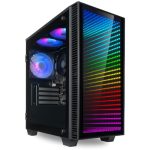
You’re in the middle of an intense gaming session or a critical video render when it happens: a sudden, jarring frame rate drop, followed by an unexpected shutdown. The culprit is rarely a software bug or a power outage; more often than not, it's the silent, insidious enemy of every powerful computer—overheating. As desktop components in 2026 push the boundaries of speed and efficiency, managing the heat they generate has become more crucial than ever for longevity, stability, and peak performance.
This topic matters because heat is the primary agent of degradation for your expensive hardware. Persistent overheating can throttle your CPU and GPU, causing sluggish performance, lead to permanent damage like solder joint failure or capacitor wear, and significantly shorten your system's lifespan. In this guide, you will learn not just the "why" but the practical "how" of thermal management. We will explore the root causes of overheating, provide a step-by-step approach to diagnosing thermal issues, and offer actionable, modern solutions—from optimal fan configuration to the latest in cooling technology—to keep your desktop running cool, quiet, and reliably for years to come.
Understanding the Heat: Why Modern Desktops Overheat
At its core, a desktop computer is a sophisticated space heater. Every electrical operation within the CPU, GPU, power supply, and even storage drives generates waste energy in the form of heat. The fundamental challenge in 2026 is that performance gains often come with increased thermal design power (TDP), meaning components can draw more power and produce more heat than ever before, especially in compact or pre-built systems with limited cooling design. The primary heat generators are the Central Processing Unit (CPU) and Graphics Processing Unit (GPU), which can easily reach temperatures exceeding 80°C under heavy loads if not properly cooled. Other contributors include the power supply unit (PSU), motherboard voltage regulators (VRMs), and fast NVMe SSDs, which can also require small heatsinks in high-performance setups.
Several key factors conspire to turn this normal heat generation into a dangerous overheating scenario. The most common is inadequate airflow, often caused by a poor internal layout, dust-clogged vents and fans, or an insufficient number of fans creating positive air pressure. Ambient room temperature plays a significant role; a desktop operating in a 30°C room has a much harder time cooling itself than one in a 20°C environment. Furthermore, aging thermal paste—the conductive material between a chip and its heatsink—can dry out and crack over 3-5 years, severely impeding heat transfer. Finally, overclocking components without a commensurate upgrade in cooling is a direct and fast track to thermal throttling and instability.
Recognizing the symptoms of overheating early can prevent catastrophic failure. The most obvious signs are excessive fan noise as your system ramps up cooling in a desperate attempt to shed heat, followed by thermal throttling, where the CPU or GPU deliberately slows down to reduce temperature, causing noticeable performance drops. Random blue screens, system freezes, and unexpected shutdowns during intensive tasks are critical warnings. In severe cases, you might even smell a faint, acrid odor of hot electronics or feel excessive heat radiating from the case vents. Monitoring software like HWMonitor, Core Temp, or MSI Afterburner is essential for keeping a digital eye on your component temperatures in real time.
The Foundation of Cool: Optimal Case Selection and Airflow Strategy
Your computer case is not just a aesthetic shell; it is the foundational element of your cooling ecosystem. Choosing the right case in 2026 means prioritizing airflow potential over flashy, sealed glass panels. Look for cases with a mesh front panel, which allows for unimpeded air intake, and ensure there are ample mounting points for fans—typically at least two or three intake fans at the front and one exhaust at the rear. Cases with dedicated cable management channels and space behind the motherboard tray are crucial, as tangled cables are one of the biggest obstacles to smooth airflow, creating dead zones where hot air can stagnate.
Once you have a suitable case, implementing a logical airflow strategy is paramount. The goal is to create a directed, high-volume flow of cool air across your components and a quick exit path for hot air. The standard and most effective configuration is front-to-back, bottom-to-top airflow. Install intake fans at the front and bottom of the case to draw in cool air. This air should then flow over the CPU, GPU, and motherboard, absorbing heat, before being expelled by exhaust fans at the rear and top of the case, leveraging the natural tendency of hot air to rise. This setup creates positive air pressure inside the case, which helps reduce dust accumulation by forcing air out of small unfiltered gaps.
Practical implementation involves fan sizing and balance. Using larger fans (140mm or 200mm) where possible is advantageous, as they can move the same volume of air as smaller fans but at lower revolutions per minute (RPM), resulting in a quieter system. Ensure your intakes and exhausts are roughly balanced, with a slight bias toward positive pressure (more intake cfm than exhaust). Use the dust filters that come with modern cases on all intake points, and make a habit of cleaning them every month. For example, in a standard mid-tower, a setup of three 120mm intakes at the front, one 120mm exhaust at the rear, and one or two 120mm exhausts at the top will provide robust airflow for most high-performance systems.
Component-Level Cooling: From Thermal Paste to Advanced Solutions
Maintenance and Monitoring: The Non-Negotiable Routines
Even the best cooling setup will fail without regular maintenance. Dust is the silent insulator of the computing world. It coats heatsink fins, clogs fan blades, and blankets components, acting as a thermal blanket that traps heat. A disciplined cleaning schedule is your first line of defense. Every three to six months, power down and unplug your system, open the case, and use a combination of compressed air (from a can or electric duster) and a soft, anti-static brush to remove dust buildup. Pay special attention to fan blades, heatsink fins, dust filters, and the power supply intake vent. Always hold fans in place while blowing air to prevent them from spinning uncontrollably and damaging their bearings.
Proactive monitoring is the second pillar of maintenance. Do not wait for symptoms to appear; use software tools to establish a baseline for your system's normal temperatures at idle and under load. Tools like HWiNFO64 provide incredibly detailed sensor data. Run a stress test with Prime95 (for CPU) and FurMark (for GPU) for 15-20 minutes while monitoring temperatures to see your system's worst-case thermal performance. Safe maximum temperatures vary by component, but as a general rule in 2026, keeping your CPU below 85°C and your GPU below 90°C under sustained load is a good target. Modern components will throttle before reaching dangerous levels, but consistent operation near the throttle point is harmful.
Your computing environment also requires management. Place your desktop in a location with at least 6 inches of clearance on all sides, especially the rear and top exhausts. Avoid enclosing it in a desk cubby or placing it on thick carpet that can block bottom intakes. Consider using a stand if your case has bottom-mounted power supply intakes. Furthermore, be mindful of ambient room temperature. Using an air conditioner or a simple room fan to lower the temperature of the air your computer intakes can have a direct and measurable impact on internal component temperatures, sometimes by 5°C or more during hot summer months.
When to Upgrade: Recognizing the Limits of Your Current Setup
There comes a point when maintenance and optimization reach their limit, and hardware upgrades become necessary to solve thermal issues. If you are consistently thermal throttling with a clean system, good airflow, and a quality aftermarket cooler, your components may simply be too powerful for their environment or your cooling may be fundamentally inadequate for your workload. This is common when upgrading to a new, high-TDP CPU or GPU in an older case or with an insufficient power supply that runs hot. Upgrading your case to a modern airflow-focused model, as detailed earlier, is often the most impactful single change you can make.
For users pushing extreme performance, advanced cooling solutions enter the conversation. Custom water cooling loops, while complex and expensive, offer the ultimate in thermal performance and acoustic control by using large radiators and water blocks to transfer heat far more efficiently than air. By 2026, more user-friendly modular liquid cooling systems have also become prevalent. Another upgrade path is to components designed for efficiency. For example, opting for a CPU from a lineup known for lower power consumption, or a GPU model with a superior third-party cooler, can solve heat problems without needing to revamp your entire cooling infrastructure.
Finally, do not overlook the power supply unit (PSU). An old, low-efficiency, or under-wattage PSU can generate excessive heat and deliver unstable power, contributing to overall system heat and instability. Upgrading to a modern, 80 Plus Gold or Platinum certified PSU from a reputable brand ensures efficient power conversion, which means less wasted energy turned into heat. It also provides clean, stable power to your components. When planning any upgrade, always consider the thermal implications: a more powerful component will likely need better cooling to realize its full potential without overheating.
Key Takeaways
- ✓ Overheating is a primary cause of performance throttling, instability, and permanent hardware damage, making proactive thermal management essential for desktop health.
- ✓ Optimal case airflow, achieved through a strategic layout of intake and exhaust fans, is the foundational and most effective method for controlling system-wide temperatures.
- ✓ Direct component cooling, including quality thermal paste and an appropriate CPU cooler, is critical for transferring heat away from the primary sources like the CPU and GPU.
- ✓ Regular physical cleaning to remove dust and consistent software monitoring of temperatures are non-negotiable maintenance routines to prevent gradual thermal degradation.
- ✓ When optimization hits its limit, strategic upgrades—such as a better-ventilated case, a more efficient PSU, or advanced cooling systems—are necessary investments for high-performance systems.
Frequently Asked Questions
What is a safe temperature range for my CPU and GPU?
Safe ranges vary by specific model, but general guidelines for 2026 are: CPU idle temperatures between 30-50°C and under load below 85°C. GPU idle temperatures between 30-45°C and under load below 90°C. Modern chips will automatically throttle (slow down) to prevent damage at around 95-105°C, but sustained operation near these limits is harmful. Consult your manufacturer's specifications for the exact thermal limits of your components.
How often should I clean the inside of my desktop computer?
For most environments, a thorough cleaning every 3 to 6 months is recommended. If you have pets, smoke, or your computer is on the floor, you may need to clean it every 2 months. A quick visual check of the dust filters monthly can help you determine the right schedule. Regular cleaning prevents dust from becoming a compacted insulator that is much harder to remove.
Is liquid cooling (AIO) better than air cooling?
It depends on your needs. High-end air coolers offer performance rivaling many All-in-One (AIO) liquid coolers, with the benefits of being quieter, more reliable, and having no risk of leaks. AIOs excel in situations with excellent case airflow but limited space above the CPU, and they can handle heat spikes slightly better. For extreme overclocking, large custom loops or high-end AIOs are superior. For most users, a top-tier air cooler provides the best balance of performance, noise, and reliability.
Can the placement of my desktop in the room really affect its temperature?
Absolutely. Placing your desktop in an enclosed cabinet, on thick carpet that blocks bottom vents, or in a direct sunlight spot can raise internal temperatures significantly. Ensure at least 6 inches of clearance on all sides, especially for exhaust vents. Keeping it in a cooler, well-ventilated part of the room with lower ambient air temperature is one of the simplest ways to improve cooling.
My fans are always loud and running fast. Does this mean I'm overheating?
Not necessarily, but it's a strong indicator. Consistently loud fans mean your cooling system is working very hard to maintain safe temperatures, which often points to an underlying issue like dust buildup, poor airflow, inadequate cooling hardware, or a high ambient room temperature. Use monitoring software to check your actual component temperatures. If temperatures are high, the noise is a symptom of overheating. If temperatures are normal, you may be able to adjust your fan curves in the BIOS or with software to create a quieter profile.
Conclusion
Preventing desktop overheating is not a single action but an ongoing practice of smart design, diligent maintenance, and informed upgrades. We've explored how heat is generated, why it becomes a problem, and the multi-layered strategy required to manage it—from selecting a case with optimal airflow and configuring fans correctly, to applying quality thermal paste, choosing the right coolers, and establishing a routine of cleaning and temperature monitoring. Each layer builds upon the last to create a stable, cool, and high-performing system that protects your investment and ensures reliable operation.
Take action today. Begin by downloading a temperature monitoring tool to assess your current thermal state. Schedule a time this week to power down and inspect your PC for dust buildup. Review your case's fan layout and consider if a simple repositioning or addition could improve airflow. By taking these proactive steps, you transform from a passive user into an informed steward of your technology, ensuring your desktop delivers its full potential without being held back—or burned out—by the heat.

Nathaniel Foster is an electronics expert focusing on consumer gadgets, smart devices, and innovative technology. He delivers practical reviews, buying guides, and troubleshooting tips to help readers make informed decisions and get the most out of their electronic products.