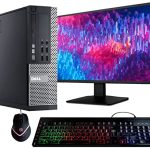
You've just navigated a complex software bug, and the solution is finally displayed on your screen. A friend sends a hilarious meme in a chat that disappears in 24 hours. You need to save a receipt from an online purchase for your records. In our digital lives, the ability to capture exactly what's on our computer monitor—a screenshot—is one of the most fundamental and powerful skills. It's the bridge between the ephemeral digital world and permanent record, a tool for work, learning, and communication.
Yet, with multiple operating systems, built-in tools, and a sea of third-party applications, knowing the fastest, most effective method can be confusing. This comprehensive guide demystifies the process for 2026. You will learn the native keyboard shortcuts for Windows, macOS, and ChromeOS, explore built-in snipping tools with advanced features, discover powerful third-party applications for professionals, and master techniques for capturing tricky content like scrolling webpages and menus. By the end, you'll be equipped to capture any on-screen moment with confidence and efficiency.
The Foundation: Native Keyboard Shortcuts
Every desktop operating system comes with screenshot capabilities baked directly into its core, accessible through simple keyboard commands. These shortcuts are the fastest way to take a screenshot without any preparation or additional software. For Windows 11 and Windows 12 (as of 2026), the primary shortcut is Windows Key + Shift S. This activates the Snipping Bar, allowing you to choose between rectangular, freeform, window, or full-screen snips. The image is copied to your clipboard and a notification appears, letting you annotate, save, or share it immediately. For a quicker full-screen grab, Print Screen (PrtScn) still copies the entire display to your clipboard, while Alt + PrtScn captures only the active window.
On macOS Sonoma and later, the ecosystem of shortcuts is equally robust. Command + Shift + 3 instantly captures the entire screen and saves it as a file on your desktop. For more precision, Command + Shift + 4 turns your cursor into a crosshair to select a specific area; adding the Spacebar after initiating this shortcut lets you capture a specific window or menu. A newer addition, Command + Shift + 5, opens a full control panel with options for recording the screen as well, offering timer delays and destination folder selection. ChromeOS, blending concepts from both, uses Ctrl + Show Windows (the key with a rectangle and two lines) for a full-screen shot, or Ctrl + Shift + Show Windows for a partial selection.
Mastering these native shortcuts is the first step to efficiency. The key is practice: try each shortcut on your system to see where the files are saved (often the Desktop or Pictures > Screenshots folder) or if they go to the clipboard. Remember, clipboard copies require you to paste (Ctrl+V or Cmd+V) into an image editor, document, or chat window to be used. For quick, no-fuss captures, these built-in methods are often all you need.
Beyond the Shortcut: Built-In Snipping & Sketching Tools
While keyboard shortcuts capture the image, built-in applications provide the editing and organizational power. These tools have evolved from simple capture utilities into capable mini-editors. On Windows, the Snipping Tool (and its modern sibling, Snip & Sketch) is central. After activating it via the shortcut or Start Menu, you can take timed screenshots, useful for capturing context menus that disappear when you click elsewhere. Once captured, the tool opens an editing window where you can crop, annotate with a pen or highlighter, use a ruler for straight lines, and even redact sensitive information with a pixelation tool before saving or sharing.
macOS integrates its editing features seamlessly through the Markup tool. After taking a screenshot with a shortcut, a thumbnail preview temporarily appears in the corner of your screen. Clicking on it opens the Markup interface directly, allowing for instant annotations, shapes, signatures, and text boxes. You can also access Markup by opening any screenshot image in Preview and clicking the toolbox icon. This tight integration means the path from capture to edited shareable image is incredibly short, fostering a workflow where quick annotation is the norm, not an extra step.
For users who need to create tutorials or document processes, the screen recording functions within these built-in tools are invaluable. Windows' Snipping Tool and macOS's Command + Shift + 5 panel both offer video capture options. This is perfect for creating short GIFs or video clips to demonstrate a software issue, record a webinar snippet, or provide visual feedback. Leveraging these built-in tools to their full potential eliminates the immediate need for external software for most casual and semi-professional uses, keeping your workflow lean and integrated.
Power-User Arsenal: Third-Party Screenshot Applications
When built-in tools fall short, third-party applications offer unparalleled power, customization, and workflow automation. These are essential for content creators, software developers, customer support agents, and anyone who takes screenshots frequently. Applications like Snagit (by TechSmith) and Lightshot provide extensive features such as scrolling capture for entire webpages, panoramic capture for wide documents, and the ability to record screen video with webcam overlay and system audio. They also offer robust libraries to organize all your captures with tags and search functionality.
Another category includes cloud-connected tools like ShareX (free and open-source for Windows) and Droplr. These tools supercharge the sharing process. Upon capture, they can automatically upload the image to a configured cloud service (like Imgur, Google Drive, or a custom server), copy the direct URL to your clipboard, and even shorten the link. This transforms a multi-step process—capture, save, open browser, upload, copy link—into a single action. For team collaboration, tools like CloudApp or Markup.io allow you to share screenshots that teammates can then annotate themselves, creating a threaded visual conversation.
Choosing a third-party tool depends on your needs. Evaluate if you need advanced editing (blurring, step-numbering, elaborate arrows), seamless integration with project management apps (like Jira, Trello, or Slack), or specific capture modes scrolling or timed menus. Most offer free trials. Start by identifying the one repetitive task in your screenshot workflow—be it uploading, annotating, or organizing—and find a tool that automates it. The time savings for a power user are substantial.
Conquering Challenges: Scrolling Captures, Menus, and More
Certain screen elements are notoriously tricky to capture. A long webpage, a multi-page PDF view, or a lengthy chat thread requires a scrolling capture. While some third-party tools specialize in this, built-in methods are catching up. In 2026, the Microsoft Edge and Google Chrome browsers have built-in scrolling screenshot functions in their developer tools (right-click, select "Inspect," then use the Command Menu (Ctrl+Shift+P) and type "capture full size screenshot"). On macOS, third-party apps are still the primary solution for full-page web captures, though some browser extensions work well.
Capturing context menus, like the right-click menu or a file menu dropdown, is another common hurdle. The trick is to use a delay function. In the Windows Snipping Tool, select "Delay" and choose 3, 5, or 10 seconds. After clicking "New," you have that time to open the menu you wish to capture. On macOS, after pressing Command + Shift + 5, select "Options" and choose a delay from the timer menu. This gives you time to set up the screen perfectly before the capture occurs automatically.
For capturing cursor effects or tooltips that appear on hover, screen recording is often the best approach. Record a short clip of you hovering the mouse to trigger the effect, then you can extract a single frame from the video or use the clip itself. Another advanced technique is capturing a specific window that may be hidden behind others. The Alt + PrtScn (Windows) or Command + Shift + 4 then Spacebar (macOS) shortcuts are perfect for this, as they target the active window regardless of its position on the screen. Mastering these techniques ensures no on-screen content is out of your reach.
Workflow Mastery: Organization, Annotation, and Sharing
Taking the screenshot is only half the job; managing the resulting file is crucial. Establish a consistent saving convention. Instead of accepting default names like "Screenshot 2026-01-01 at 12.00.00.png," immediately rename files to something descriptive. For project-related shots, include the project code and a brief description (e.g., "PRJX-102_Login_Error_UI.png"). Configure your tool of choice to save to a dedicated "Screenshots" folder, organized by year and month subfolders, to prevent desktop clutter.
Effective annotation turns a simple capture into clear communication. Use arrows and shapes to direct attention, but use them sparingly. Highlighter tools are great for emphasizing text. The text box tool is essential for adding concise explanations. For privacy, always use a blur or pixelation tool to obscure personal emails, names, addresses, or account numbers before sharing. A good practice is to develop a personal style guide: "Red arrows for bugs, blue boxes for features, yellow highlight for text."
Finally, choose the right sharing method for the context. For quick internal team communication, pasting the clipboard image directly into Slack, Microsoft Teams, or Discord is fastest. For client-facing communication or documentation, upload to a cloud service and share a link, as this often provides better compression and universal accessibility. If creating formal documentation, insert the saved, well-named file into your document management system. By streamlining the capture-to-share pipeline, you turn a simple action into a professional asset.
Key Takeaways
- ✓ Every major OS has powerful native shortcuts: Windows Key+Shift+S for Windows, Command+Shift+[3,4,5] for macOS, and+Show Windows for ChromeOS.
- ✓ Built-in tools like Windows Snipping Tool and macOS Markup offer immediate editing, annotation, and basic screen recording, often eliminating the need for extra software.
- ✓ Third-party applications (e.g., Snagit, ShareX) provide advanced features like scrolling capture, cloud auto-upload, and extensive libraries, ideal for frequent users and professionals.
- ✓ Capture tricky elements like scrolling pages and pop-up menus using delay timers, browser dev tools, or dedicated capture modes in advanced software.
- ✓ A professional workflow includes consistent file naming, organized folder structures, clear annotations, and choosing the appropriate sharing method (clipboard paste vs. cloud link) for your audience.
Frequently Asked Questions
Where do my screenshots go when I use the Print Screen key?
On most Windows systems, pressing just Print Screen (PrtScn) copies the entire image to your clipboard, but does not create a file. You must paste it (Ctrl+V) into Paint, Word, email, or another application to save it. Some laptops or customized systems may save it directly to a Pictures > Screenshots folder, especially if you press Windows Key + PrtScn. Check your system settings to be sure.
How can I take a screenshot on a desktop PC if my keyboard doesn't have a Print Screen key?
You have several options. First, use the Windows Key + Shift + S shortcut to activate the Snipping Tool bar. Second, you can search for and open "Snipping Tool" or "Snip & Sketch" application from the Start Menu and use its on-screen controls. Third, you can use the Windows on-screen keyboard (search for "On-Screen Keyboard" in the Start Menu), which includes a PrtScn button.
How do I capture a screenshot and immediately annotate it on a Mac?
Use any of the screenshot shortcuts (Command+Shift+3, 4, or 5). Immediately after the capture, a small thumbnail will appear in the bottom-right corner of your screen. Click on this thumbnail before it disappears to open the Markup editor. Here, you can add text, shapes, arrows, and signatures. If you miss the thumbnail, you can open the saved screenshot file in Preview and click the toolbox (Markup) icon.
What is the best way to take a screenshot of an entire long webpage?
The best method depends on your tools. For a built-in method, use the scrolling capture feature in the Microsoft Edge or Google Chrome browser's Developer Tools. For a dedicated solution, use a third-party application like Snagit, Lightshot, or a browser extension (e.g., "GoFullPage") that is designed specifically for full-page web captures. These tools stitch multiple screen grabs together seamlessly.
Can I change the default file format (like PNG) of my screenshots?
Yes, on both Windows and macOS. On Windows, open the Snipping Tool, click the three-dot menu, go to Settings, and under "Save snips," you can choose between PNG, JPEG, GIF, or single-file HTML (MHT). On macOS, after opening the screenshot control panel with Command+Shift+5, click "Options" and under "Save to," you can select a location, but to change the format, you need to use Terminal commands or a third-party utility. PNG is generally recommended for quality and clarity of text.
Conclusion
Mastering the art of the desktop screenshot in 2026 is about moving beyond a single keyboard shortcut to building a flexible, efficient workflow. We've explored the universal foundation of native OS shortcuts, the enhanced capabilities of built-in editing tools, the advanced automation offered by third-party applications, and the techniques to capture even the most elusive on-screen content. By understanding these layers, you can choose the right tool for the task, whether it's a quick grab for a chat or a polished, annotated image for a client report.
Now, it's time to put this knowledge into practice. Start by identifying the one screenshot task you perform most often and find a faster way to do it—be it learning a new shortcut, trying the delay timer for a menu, or testing a free third-party tool. Integrate one new organizational habit, like renaming files immediately. With these steps, you'll transform a simple action into a powerful skill that enhances your productivity, communication, and digital literacy.

Nathaniel Foster is an electronics expert focusing on consumer gadgets, smart devices, and innovative technology. He delivers practical reviews, buying guides, and troubleshooting tips to help readers make informed decisions and get the most out of their electronic products.