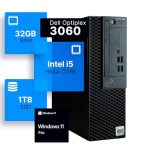
You've just unboxed a shiny new desktop computer, its components promising power and potential. But as you stare at the tower, monitor, and tangle of cables, a wave of uncertainty hits. Setting up a desktop can feel like a daunting puzzle, especially with the rapid evolution of ports and standards. Fear not—this initial intimidation is a common hurdle, and with a clear, methodical approach, you can transform that box of parts into a fully operational command center in under an hour.
This guide is designed for everyone, from first-time PC owners to seasoned users upgrading their rig. A proper setup is more than just plugging things in; it ensures optimal performance, longevity for your components, and a safe, ergonomic workspace. You will learn not only the physical assembly steps but also the crucial first-boot software configuration, essential driver installations, and foundational security practices to protect your new investment from day one. By the end, you'll have a computer that's not just working, but working for you.
Pre-Setup Preparation and Workspace Essentials
Before you touch a single component, take time to prepare your environment. Clear a large, flat, and static-free surface, like a wooden or laminate table. Avoid carpets, as they generate static electricity that can damage sensitive electronics. Gather all the boxes and components, carefully unpacking them and laying each item out with its included cables and manuals. This inventory check ensures you have everything—tower, monitor, keyboard, mouse, power cables, and any peripherals—before you begin. Keep the manuals and driver discs (if included) nearby, though we will primarily use online resources.
Next, consider your permanent workspace. Ensure your desk or table is sturdy and provides adequate space for the tower (often best placed on the desk surface for better airflow and less dust, rather than on the floor). Plan for cable management; having a few zip ties or Velcro straps on hand will help tame the inevitable wire jungle later. Position your desk near a power outlet with a surge protector, not just a simple power strip. A quality surge protector is a non-negotiable investment to shield your expensive hardware from voltage spikes.
Finally, prepare your tools and mindset. You typically only need your hands, but a Phillips-head screwdriver might be needed for securing the monitor stand or opening the side panel of the tower for a later upgrade. Have a flashlight or good overhead light ready. Most importantly, practice patience. Don't force connections; modern components are designed to fit together smoothly. If a plug or component doesn't seat easily, double-check its orientation and alignment.
The Physical Connection: Cables, Ports, and Power
Begin by connecting your monitor. First, attach the monitor stand to the base according to its manual, then connect the video cable. In 2026, the most common and recommended cable is DisplayPort or HDMI 2.1, which carry both high-resolution video and audio. Locate the corresponding port on the back of your desktop tower—usually on the dedicated graphics card (a horizontal cluster of ports lower on the case) rather than the motherboard's vertical ports. Plug one end of the cable firmly into the monitor and the other into the tower. If your monitor has a power brick, connect it, then plug the monitor's power cable into your surge protector.
Now, connect your peripherals. Plug your keyboard and mouse into USB Type-A ports on the back of the tower. For wired models, any USB port will do. For wireless models with a USB dongle, plug the dongle into a rear USB port for the best, unobstructed signal. If you have speakers or headphones, connect them to the appropriate audio jack on the back (usually color-coded green) or on the front panel of the tower. Finally, connect the tower's power supply cable to the corresponding port on the back of the unit.
The last step is the network connection. For the most stable and fastest speeds, use an Ethernet cable. Plug one end into your router or wall jack and the other into the Ethernet port on the back of the motherboard (it looks like a large telephone jack). If you plan on using Wi-Fi, ensure your desktop has a Wi-Fi card (common in modern pre-builts) or a USB adapter. You will configure the Wi-Fi connection later in the software setup. Do not press the power button yet.
First Boot and Initial Operating System Setup
With all cables connected, first turn on your monitor, then press the power button on the desktop tower. You should hear fans spin up and see lights activate. The monitor should display a manufacturer logo or, more likely, the initial setup screen for your operating system (like Windows 12 or your chosen Linux distribution). This first-boot process is crucial and will guide you through several important choices. Follow the on-screen prompts, which will typically ask you to select your region, language, and keyboard layout.
You will then be prompted to connect to the internet. If you used an Ethernet cable, this should happen automatically. If using Wi-Fi, select your network name from the list and enter the password. This connection is vital for the next steps, as the OS will check for critical updates. The setup will then ask you to sign in with or create a user account. For Windows, this means a Microsoft account; for macOS, an Apple ID; for Linux, a local account. Using an online account offers benefits like built-in backup and security features, but you may have options to create a local-only account.
The setup will conclude with privacy settings and optional services. Take a moment to review these carefully. You can choose to enable or disable features like location tracking, diagnostic data sharing, and personalized advertising. While you can change most of these later, it's good practice to set your preferences from the start. After confirming your choices, the system will finalize the installation, apply any day-one updates, and then take you to the clean desktop interface. Your core system is now running.
Post-Installation: Drivers, Updates, and Security
Your computer is operational, but to ensure peak performance and stability, you must handle drivers and updates. Drivers are specialized software that allow your OS to communicate properly with your hardware. While Windows Update installs generic drivers, visiting your PC manufacturer's website (for pre-builts) or the websites of your component manufacturers (for custom builds) is best. For a pre-built Dell or HP, go to their support site, enter your model number, and download the latest drivers for your chipset, audio, and network adapters. For a custom build, visit the sites for your motherboard, graphics card (NVIDIA or AMD), and other components.
After installing critical drivers, run a comprehensive system update. On Windows, go to Settings > Windows Update and click "Check for updates." Install all available updates, which may include security patches, OS feature updates, and further driver refinements. This process may require several restarts. Simultaneously, enable your system's built-in security. Ensure Windows Security (Defender) is turned on and running real-time protection. Consider enabling features like Firewall and Core Isolation for added security layers.
Now, install your essential software. Start with a web browser if you prefer an alternative to the default. Then, consider productivity suites, media players, and compression tools like 7-Zip. Crucially, do not neglect a backup solution. Set up File History on Windows or use a third-party tool to automatically back up your important documents to an external drive or cloud service. Configuring this early means your data is protected from the very beginning, before any potential issues arise.
Optimization, Personalization, and Creating Your Workflow
With a secure and updated system, you can now tailor the computer to your needs. Begin with personalization. Adjust your display settings: right-click the desktop and choose Display Settings to set the correct resolution (usually the one marked "Recommended") and adjust the scale if text or icons are too small. Explore the Personalization settings to change your wallpaper, theme, and accent colors to create a visually pleasing environment that suits your taste.
Next, optimize your startup. Over time, as you install software, many programs will try to launch automatically when you boot your PC, slowing down startup. To manage this, open Task Manager (Ctrl+Shift+Esc), go to the Startup Apps tab, and disable any programs you don't need immediately upon login, such as chat clients or media helpers. You can always launch them manually when needed. This simple step can significantly improve your boot time.
Finally, organize your digital workspace. Create a logical folder structure in your Documents, Pictures, and Videos libraries. Pin your most-used applications to the taskbar or Start Menu. Explore power settings—if you're on a desktop, setting the power plan to "High performance" ensures components are never unnecessarily throttled. Take an afternoon to explore your system settings; understanding where controls are for sound, notifications, and devices will save you time and frustration later, cementing your new desktop as a true extension of your workflow.
Key Takeaways
- ✓ Preparation is critical: set up in a static-free area, use a surge protector, and inventory all parts before connecting anything.
- ✓ Connect cables methodically, prioritizing the monitor video cable to the correct GPU port and using a wired Ethernet connection for the most stable first boot.
- ✓ The initial OS setup is foundational; carefully configure your user account, internet connection, and privacy settings during this guided process.
- ✓ Post-installation, proactively install hardware-specific drivers and all system updates to ensure security, stability, and performance.
- ✓ Personalize and optimize your system early by managing startup programs, adjusting power settings, and organizing your file structure to build an efficient workflow.
Frequently Asked Questions
Do I need to install drivers if Windows installs them automatically?
While Windows Update provides basic generic drivers, they are often not the latest or most optimized for your specific hardware. For best performance, especially for critical components like your graphics card and chipset, you should download and install the latest drivers directly from the manufacturer's website. This can resolve bugs, improve stability, and unlock full feature sets.
Should I place my desktop tower on the floor or on the desk?
Placing it on the desk is generally recommended. It keeps the tower away from dust, pet hair, and carpet fibers that can clog intake fans and filters, leading to higher temperatures and louder operation. If you must place it on the floor, use a hard, flat surface and ensure it's not on a carpet. Consider a small stand to elevate it slightly.
What is the single most important cable to connect correctly?
The video cable from your monitor to your desktop. Ensure it is plugged into the graphics card output (usually lower on the case, with multiple ports like HDMI and DisplayPort) and not the motherboard video output (usually higher up, near the USB and Ethernet ports). Plugging into the motherboard often results in no display if you have a dedicated GPU.
How long should the initial setup and update process take?
The physical setup takes 15-30 minutes. The initial operating system setup can take another 15-20 minutes. The driver installation and, most variably, the Windows Update process can take anywhere from 30 minutes to several hours, depending on your internet speed and the number of cumulative updates required since your OS version was packaged. Be patient and let it complete.
Is it safe to skip creating a Microsoft/Apple account and use a local account instead?
You can often create a local account, but you may miss out on integrated features like seamless cloud backup (OneDrive/iCloud), device synchronization, and access to the official app stores. For a more integrated and recoverable experience, the online account is recommended. However, for maximum privacy and a completely offline experience, a local account is a valid choice.
Conclusion
Setting up a new desktop computer is a rewarding process that blends simple physical assembly with important software configuration. By following a logical sequence—preparing your space, making correct physical connections, carefully navigating the first-time OS setup, diligently installing drivers and updates, and finally personalizing your environment—you transform a collection of components into a powerful, secure, and personalized tool. This structured approach not only ensures a smooth initial experience but also lays a foundation for long-term reliability and performance.
Your journey doesn't end here. With your system now operational, take time to explore its capabilities. Experiment with productivity software, delve into creative applications, or enjoy the gaming or entertainment potential it holds. Regularly maintain your system by checking for updates, cleaning temporary files, and verifying your backups. Congratulations on successfully building your digital command center; now go forth and use it to create, connect, and explore.

Nathaniel Foster is an electronics expert focusing on consumer gadgets, smart devices, and innovative technology. He delivers practical reviews, buying guides, and troubleshooting tips to help readers make informed decisions and get the most out of their electronic products.