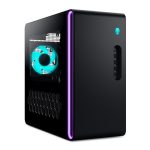
Is your once-speedy desktop computer now groaning under the weight of modern software, turning simple tasks into exercises in patience? You’re not alone. The good news is that you don’t need to buy a brand-new machine to reclaim that lost speed and capability. With a systematic approach, upgrading your desktop PC can be a rewarding and cost-effective project that breathes new life into your system for years to come.
This comprehensive guide demystifies the process of desktop enhancement, moving from initial assessment to final boot-up. Whether you're a complete novice or a tinkerer looking for a structured approach, you will learn how to identify your system's bottlenecks, select compatible components, and execute upgrades with confidence. We'll cover everything from the essential tools and safety precautions to the specific steps for installing core components like RAM, storage, and graphics cards, ensuring you maximize your investment and avoid common pitfalls.
Laying the Groundwork: Assessment and Planning
Before you purchase a single component, the most critical step is a thorough assessment of your current system and your performance goals. Begin by identifying what you want to achieve. Are you aiming for faster boot times and application loading? Is your goal smoother gameplay at higher resolutions? Or do you need more power for video editing or 3D rendering? Defining your objective will directly guide which components you prioritize for upgrade. Use built-in tools like Task Manager (Ctrl+Shift+Esc) on Windows or Activity Monitor on macOS to see which resources (CPU, RAM, Disk) are consistently maxed out during your typical workload.
Next, you must gather detailed information about your existing hardware. Crucial details include your motherboard model (which dictates CPU and RAM compatibility), your power supply unit's wattage and efficiency rating, and the physical dimensions of your case. Free software like CPU-Z or Speccy can provide a complete breakdown of your system's internals. This research phase is non-negotiable; buying an incompatible part is the most common and costly mistake. For example, a modern DDR5 RAM kit will not fit into a motherboard designed for DDR4, and a powerful new GPU will be useless if your power supply can't deliver enough stable power.
Finally, create a budget and a phased plan. You don't have to do everything at once. A practical approach is to start with the upgrades that offer the most immediate impact for your goals. For general responsiveness, a Solid State Drive (SSD) is the single most transformative upgrade. For gaming, the graphics card is typically king. Plan your purchases, watch for sales, and ensure you have the necessary tools: a set of precision screwdrivers (Phillips #1 and #2 are most common), an anti-static wrist strap, zip ties for cable management, and a well-lit, clean, static-free workspace.
The Essential Upgrades: Storage and Memory
For most users, upgrading storage and memory (RAM) offers the best balance of cost, simplicity, and performance gain. We'll start with storage because the shift from a traditional Hard Disk Drive (HDD) to a Solid State Drive (SSD) is revolutionary. An SSD has no moving parts, using flash memory to access data almost instantly. This translates to boot times measured in seconds instead of minutes, near-instant application launches, and overall snappier system behavior. In 2026, NVMe M.2 SSDs, which plug directly into the motherboard, are the standard for speed, though SATA SSDs remain a viable, easier-to-install option for older systems.
Installing an SSD typically involves connecting two cables: a SATA data cable to the motherboard and a SATA power cable from the power supply. For an M.2 drive, you simply insert it into the dedicated slot on the motherboard at a slight angle and secure it with a tiny screw. The key software step is cloning your old drive to the new one using software like Macrium Reflect or Clonezilla, which copies your operating system, applications, and files so you can boot directly from the new drive. Always ensure your important data is backed up before beginning any storage procedure.
Increasing your system RAM is often the next easiest upgrade. More RAM allows your computer to handle more applications simultaneously without slowing down. Check your motherboard's manual to understand its RAM configuration (e.g., dual-channel) and maximum capacity. Purchase a matched kit (e.g., 2x8GB) for best performance. Installation is straightforward: power down the system, open the case, push down the latches on the RAM slots, align the notch on the RAM stick with the slot, and press firmly until the latches click back into place. This is a plug-and-play upgrade; your system will automatically recognize the new memory upon boot.
Boosting Visual Power: The Graphics Card Upgrade
Upgrading the Graphics Processing Unit (GPU) is the primary path to enhanced gaming performance, smoother 4K video playback, and faster performance in creative applications like Blender or DaVinci Resolve. The GPU market in 2026 offers a wide range of options, from budget-friendly 1080p cards to behemoths designed for 4K gaming with ray tracing. Your choice should be dictated by your monitor's resolution and refresh rate, your target game settings, and, crucially, the physical constraints and power supply capacity of your current PC.
Before purchase, you must verify two things: physical fit and power requirements. Modern GPUs can be large. Measure the available space in your case, particularly the length from the rear expansion slot cover to any obstructions like drive cages. Next, check the wattage and available PCIe power connectors on your Power Supply Unit (PSU). A mid-range GPU might require one 8-pin connector, while high-end models can need two or three. Using a PSU that's underpowered or lacks the proper cables can cause system instability or failure.
Installation involves removing the old GPU (if present) by unscrewing its bracket and releasing the PCIe slot latch. For the new card, align it with the PCIe x16 slot (usually the top one closest to the CPU) and press down firmly until it clicks into place. Secure it with screws to the case bracket and connect all required power cables from the PSU. Once booted, immediately download and install the latest drivers from the GPU manufacturer's website (NVIDIA or AMD). These drivers are essential for stability, performance, and enabling features specific to your new hardware.
Advanced Enhancements: CPU, Cooling, and Power
Upgrading the Central Processing Unit (CPU) is a more complex undertaking that often necessitates a motherboard change, effectively building a new PC. CPU compatibility is strictly defined by the motherboard's socket (e.g., AM5 for AMD, LGA1851 for Intel in 2026). Therefore, a CPU upgrade usually means researching a compatible new motherboard and potentially new RAM (e.g., moving from DDR4 to DDR5). This is a major project best undertaken when you need a fundamental platform shift for significantly better multi-core performance for tasks like streaming, coding, or intensive content creation.
With more powerful components comes increased heat. Stock coolers provided with CPUs are often just adequate. Aftermarket air coolers or All-in-One (AIO) liquid coolers offer better thermal performance, which can allow your CPU to sustain higher boost clocks for longer periods, directly improving performance. When upgrading cooling, ensure the cooler's height or radiator size is compatible with your case dimensions. Proper thermal paste application (a pea-sized dot in the center of the CPU) is critical for efficient heat transfer from the CPU to the cooler.
The Power Supply Unit (PSU) is the heart of your system, and a high-quality unit is non-negotiable for stability and longevity. If you are adding a powerful GPU and CPU, your old PSU may not have sufficient wattage or the necessary modern connectors. Look for a PSU with an 80 Plus Bronze rating or higher from a reputable brand. Modular PSUs are highly recommended as they allow you to connect only the cables you need, drastically improving airflow and cable management inside the case, which also contributes to lower overall temperatures.
Final Assembly, Testing, and Optimization
After all physical upgrades are installed, the process shifts to careful reassembly and testing. Before closing the case, do a final check: ensure all components are fully seated (RAM, GPU), all necessary power cables are securely connected (24-pin motherboard, 8-pin CPU, GPU, storage drives), and no loose screws or tools are inside the case. Take time to route cables neatly along the case's edges using zip ties or Velcro straps. Good cable management isn't just for aesthetics; it improves airflow, reducing dust buildup and lowering temperatures for all components.
Now, perform a "breadboard" test by powering on the system with the side panel off. Watch and listen: the fans should spin up, and you should see LED indicators on the motherboard. If the system fails to post (beep or display an image), don't panic. Re-seat the RAM and GPU, double-check all power connections, and consult your motherboard's manual for diagnostic LED or beep code meanings. Once you successfully boot into your operating system, verify that all new hardware is recognized in the System Information or Device Manager.
The final step is software optimization. Update your motherboard's BIOS/UEFI from the manufacturer's website for improved compatibility and stability. Install the latest drivers for your new components, especially the GPU and chipset. Use benchmarking tools like 3DMark (for gaming) or Cinebench (for CPU) to stress-test your new setup and ensure it's performing within expected parameters. Monitor temperatures during these tests with software like HWMonitor to confirm your cooling solution is adequate. Finally, enjoy the fruits of your labor by launching your most demanding game or application and experiencing the transformative speed.
Key Takeaways
- ✓ Always begin with a thorough system assessment and clear goal-setting to identify the right upgrades and ensure component compatibility.
- ✓ Upgrading to an SSD and adding more RAM are the most cost-effective and simplest ways to dramatically improve general system responsiveness.
- ✓ A graphics card upgrade is key for gaming and creative work, but requires careful verification of physical space and power supply capacity.
- ✓ CPU upgrades are complex and often require a new motherboard and RAM, making them a project for when a full platform performance leap is needed.
- ✓ Never underestimate the importance of proper cooling, a reliable power supply, and post-upgrade software optimization for a stable and high-performing system.
Frequently Asked Questions
Is upgrading a desktop PC worth it, or should I just buy a new one?
It depends on your current system's foundation and your goals. If your motherboard supports modern components and you're only targeting one or two bottlenecks (like storage or graphics), upgrading is significantly more cost-effective. If your platform is very old (e.g., doesn't support SSDs or modern CPUs), a new pre-built or custom PC might be a better long-term investment.
How can I be sure a new component will be compatible with my motherboard?
Use system scanner tools on retailer websites, which can detect your hardware and filter for compatible parts. Crucially, cross-reference the specifications: check your motherboard's manual for its CPU socket type, RAM generation (DDR4/DDR5) and speed support, and available M.2 or PCIe slots. For GPUs and PSUs, verify physical dimensions and power requirements.
Do I need to reinstall Windows after upgrading my storage or CPU?
For a storage upgrade, cloning your old drive to a new SSD avoids reinstalling Windows and all your programs. For a CPU-only upgrade on the same motherboard, a reinstall is usually not necessary, though updating chipset drivers is recommended. If you change the motherboard, Windows will likely require reactivation and fresh drivers, making a clean install the most stable option.
What is the single most impactful upgrade for an older computer?
For nearly any system still using a traditional hard drive (HDD), replacing it with a Solid State Drive (SSD) as the primary boot drive is the single most noticeable upgrade. The difference in boot speed, application launch times, and overall system responsiveness is night and day, often making an old computer feel new again.
How important is an anti-static wrist strap, and what's the safest way to handle components?
While professional builders often use them, for a home upgrade, you can effectively ground yourself by frequently touching the bare metal frame of your computer case while it is plugged in (but switched off at the PSU). Work on a non-carpeted surface, avoid wearing socks, and handle components by their edges, avoiding contact with gold connectors and circuitry.
Conclusion
Upgrading your desktop PC is a manageable and immensely satisfying project that extends the life of your machine and tailors its performance to your exact needs. By following the structured, step-by-step approach outlined in this guide—from initial planning and compatibility checks to the physical installation of components like SSDs, RAM, and GPUs, and concluding with thorough testing and optimization—you empower yourself to make informed decisions and execute upgrades with confidence. The process demystifies the inner workings of your computer, turning it from a mysterious black box into a customizable tool.
The journey to a faster, more capable desktop is within your reach. Start by assessing your current system, define what "better" means for you, and tackle one upgrade at a time. The community of PC enthusiasts is vast and supportive, with countless video tutorials and forums available for specific questions. Take the plunge, invest a weekend, and experience the reward of not just having a more powerful computer, but of having built that power with your own hands. Your revitalized desktop awaits.

Nathaniel Foster is an electronics expert focusing on consumer gadgets, smart devices, and innovative technology. He delivers practical reviews, buying guides, and troubleshooting tips to help readers make informed decisions and get the most out of their electronic products.