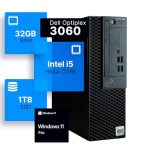
The unboxing experience of a new desktop computer is a moment of pure potential. The sleek case, the untouched components, and the promise of speed and capability are exhilarating. But after the initial excitement fades, a crucial question arises: what now? The actions you take in the first hours and days of ownership are critical for transforming this powerful machine from a generic device into a secure, efficient, and personalized digital command center.
This guide is your comprehensive roadmap for the post-purchase phase. A new computer in 2026 is more than just hardware; it's an ecosystem that requires careful setup to ensure security, performance, and longevity. Whether you're a creative professional, a hardcore gamer, or a home user, following a structured process will protect your investment, safeguard your data, and unlock the full potential of your machine. You will learn how to fortify your system against threats, optimize its performance, establish a robust backup strategy, personalize your environment, and ensure its physical well-being.
Phase 1: The Foundational Setup and Security Fortress
Immediately after your first boot, resist the urge to dive into personalization or software installation. Your first priority is to establish a secure and updated foundation. Begin by connecting to the internet and navigating directly to your operating system's update utility. For Windows 11 or its successors, this is "Windows Update" in Settings. For macOS, it's "Software Update" in System Preferences. Run all available updates, including critical security patches, driver updates, and major feature updates. This process may require several restarts, but it is non-negotiable for patching vulnerabilities that existed when your computer was packaged.
Next, you must create a robust user account structure. If the initial setup prompted you to create a Microsoft or Apple ID, you're on the right track. Ensure your account is protected by a strong, unique password and, crucially, enable multi-factor authentication (MFA) on the associated account. For the local administrator account—the one with full system control—use a different, complex password. In a household or office setting, create standard user accounts for daily use for yourself and others. Using a standard account for everyday tasks is a powerful security practice, as it prevents malicious software from making system-wide changes without explicit administrator permission.
The third pillar of foundational security is installing a reputable security suite. While modern operating systems have built-in defenses like Windows Defender or macOS Gatekeeper, a dedicated third-party internet security suite in 2026 offers enhanced protection layers such as behavioral analysis, advanced firewall controls, and dedicated ransomware shields. Choose a well-reviewed option and schedule its first full system scan. Furthermore, take this time to configure your computer's built-in firewall to block all unsolicited incoming connections by default, adding an extra barrier between your new system and the network.
Phase 2: Performance Optimization and Driver Management
With security established, shift your focus to ensuring your hardware performs at its peak. The most critical step here is managing your device drivers. These are the specialized software pieces that allow your operating system to communicate with your specific hardware components, like your graphics card, chipset, and network adapter. While Windows Update provides generic drivers, for optimal performance—especially for gaming or creative work—you must visit the manufacturer's websites. Go to the support pages for your specific desktop model (for pre-builts from Dell, HP, etc.) or for your individual components (for custom builds, like NVIDIA/AMD for GPU, Intel/AMD for chipset) and download the latest drivers.
Storage management is a key performance factor. Your new desktop likely has a fast NVMe SSD as its primary drive (C: on Windows). Your goal is to keep this drive from becoming cluttered, as a nearly full SSD can slow down dramatically. During setup, consciously change the default installation paths for major applications and games to a secondary, larger hard drive or SSD if you have one. Also, immediately configure your web browsers, photo management software, and document editors to save downloads and new files directly to a secondary drive or a dedicated folder on your main drive, not the desktop. This simple habit maintains system drive performance.
Finally, take control of your startup programs. Many applications configure themselves to launch automatically when Windows or macOS starts, silently consuming RAM and CPU cycles from the moment you power on. On Windows, open the Task Manager (Ctrl+Shift+Esc), go to the "Startup" tab, and disable everything non-essential, like cloud storage sync clients you don't need running constantly or media helper apps. On macOS, go to System Preferences > Users & Groups > Login Items. A lean startup routine means your computer boots faster and has more resources available for the tasks you actually want to do.
Phase 3: The Non-Negotiable Backup and Recovery Plan
Before you load a single personal file onto your new machine, you must institute a backup strategy. Data loss is not a matter of "if" but "when," due to hardware failure, malware, or accidental deletion. The 2026 standard is the 3-2-1 Backup Rule: have at least three total copies of your data, on two different types of media, with one copy stored offsite. Your new desktop is copy number one. You now need to create copies two and three.
Start by setting up a local, automated backup. For Windows, use the built-in "File History" tool to continuously back up your Documents, Pictures, and other key folders to an external USB hard drive. For more comprehensive system imaging, use a third-party tool like Macrium Reflect or Veeam Agent to create a full disk image weekly. On macOS, Time Machine is an excellent and seamless solution that works with any external drive. Configure it to run hourly backups automatically when the drive is connected. This local backup is your first line of defense for quick recovery from accidental file deletion or corruption.
The offsite component is crucial for protection against physical disasters like fire or theft. This is where a cloud backup service comes in. Services like Backblaze, Carbonite, or iCloud Drive (for macOS integration) offer unlimited or large-capacity backup for a monthly fee. Configure the service to back up your essential data folders. Unlike sync services (Dropbox, OneDrive), true backup services retain file version history and are designed for disaster recovery. Once configured, it works silently in the background. As a final step, use your OS's built-in recovery drive creation tool to make a bootable USB stick. If your system fails to boot, this stick can restore your system image or reinstall the OS, completing your recovery ecosystem.
Phase 4: Personalization and Essential Software Curation
Now for the enjoyable part: making the computer truly yours. Begin with system personalization. Adjust your display settings for comfort and accuracy: set the correct resolution and scaling, calibrate color if you do photo/video work, and enable Night Light or Night Shift to reduce blue light in the evenings. Organize your Start Menu or Dock with shortcuts to your most-used applications. Set up virtual desktops for workflow separation—one for work apps, one for communication, one for entertainment—and learn the keyboard shortcuts to switch between them instantly (Windows Key + Ctrl + Left/Right, or Control + Left/Right on macOS with Mission Control).
Carefully curate your essential software. Avoid the temptation to download every free program you see. Start with the necessities: a web browser (Chrome, Firefox, Edge), a productivity suite (Microsoft 365, Google Workspace, or LibreOffice), and any communication apps you need (Zoom, Discord). For media, install a versatile player like VLC. Then, move to your passion-specific tools: Adobe Creative Cloud for creatives, Steam and game launchers for gamers, coding IDEs for developers. A critical tip: always download software from the official developer or publisher website, not from third-party download portals that often bundle unwanted adware or outdated versions.
Finally, sync your digital life. Log into your web browser with your account (Google, Microsoft, Firefox) to sync bookmarks, passwords, and extensions across devices. Set up your email client (Outlook, Thunderbird) or ensure the built-in Mail app is configured. Install and log into your password manager (LastPass, 1Password, Bitwarden)—this is one of the most important security and convenience steps you can take. If you use cloud storage like OneDrive, Google Drive, or Dropbox, install the desktop client and choose which folders to sync locally. This step seamlessly integrates your existing digital ecosystem into your new powerhouse machine.
Phase 5: Physical Setup, Maintenance, and Future-Proofing
The physical environment of your desktop is as important as its digital one. Place your tower in a location with ample airflow. Avoid cramming it into a closed desk cubby or against a wall where vents are blocked. Ensure all cable connections from the monitor, power, keyboard, mouse, and peripherals are secure. If you have a UPS (Uninterruptible Power Supply), connect the desktop and monitor to it to protect against power surges and provide time for a graceful shutdown during outages. This is especially critical in 2026 as power grids see more strain. Position your monitor so the top of the screen is at or slightly below eye level to promote good posture.
Proactive maintenance will extend your computer's life and performance. Dust is the enemy of electronics. Every three to six months, power down the system, unplug it, and use a can of compressed air to gently blow dust out of the vents, fans, and heatsinks. For custom builds, you may open the side panel for a more thorough cleaning. On the software side, schedule a monthly "digital cleaning." Use your OS's built-in disk cleanup utility, review and uninstall programs you no longer use, and clear your browser cache. This prevents digital cruft from accumulating and slowing you down.
Think about future-proofing from day one. Document your system's specifications, including the Windows or macOS product key, and keep a list of the software licenses you've purchased. This is invaluable for troubleshooting or reinstalling. Explore your machine's upgrade potential. Know how many free RAM slots you have, what type of storage expansion (M.2 slots, SATA ports) is available, and the compatibility for future CPU or GPU upgrades. Understanding these limits helps you plan cost-effective upgrades down the line, allowing you to boost performance without buying a whole new system for years to come.
Key Takeaways
- ✓ Security is the absolute first priority: complete all system updates, create secure user accounts, and install robust protection before anything else.
- ✓ Optimal performance requires managing device drivers from manufacturer websites and controlling which applications launch at startup.
- ✓ Implement the 3-2-1 backup rule immediately: maintain three copies of data on two different media, with one copy stored offsite in the cloud.
- ✓ Personalize and install software deliberately from official sources, and integrate your essential accounts and cloud services for a seamless workflow.
- ✓ The physical setup and regular maintenance—including dust management, cable organization, and understanding upgrade paths—are crucial for long-term reliability.
Frequently Asked Questions
How long should the initial setup and update process take?
The initial update process can vary widely from 30 minutes to several hours, depending on the age of the OS build installed at the factory and your internet speed. Be prepared for multiple rounds of updates and restarts. It's best to start this process when you have no urgent tasks on the computer and can let it run uninterrupted.
Is the built-in antivirus in Windows/Mac good enough, or do I need to buy one?
For most users in 2026, the built-in protections (Windows Defender Security Center/Apple's Gatekeeper and XProtect) are robust and sufficient when combined with safe browsing habits. However, a paid internet security suite often provides more comprehensive features like advanced firewall management, secure banking browsers, password managers, and dedicated tech support, which can be valuable for less tech-savvy users or those handling sensitive data.
What is the single most important thing to do to keep my new computer fast?
The most impactful habit is to keep your primary system drive (usually the C: drive) from filling up. Aim to keep at least 15-20% of its capacity free. This allows the SSD to operate efficiently for wear-leveling and temporary file operations. Use a secondary drive for large media libraries, game installations, and archival data.
How often should I create a full system image backup?
You should create a full system image backup after your initial setup is complete, security is configured, and essential software is installed. This gives you a "clean slate" restore point. After that, a monthly image backup is a good routine for most users. Complement this with continuous file backups (like File History or Time Machine) for daily changes. Before performing any major system change, like a large OS update, creating a manual image is a wise precaution.
I bought a pre-built desktop. Can I still upgrade it later?
In most cases, yes, but with limitations. Pre-built systems from major manufacturers often use proprietary motherboards and power supplies, which can restrict upgrade options. Typically, you can easily add more RAM, add additional storage drives, and sometimes upgrade the graphics card, provided the power supply has sufficient wattage and physical space in the case. Always check the specific model's technical guide or service manual from the manufacturer's website to understand its upgrade capabilities.
Conclusion
Setting up a new desktop computer is a multi-stage journey that extends far beyond plugging it in. By methodically progressing through the phases of security hardening, performance tuning, backup creation, personalization, and physical care, you transform a generic machine into a reliable, efficient, and secure partner for your digital life. This proactive approach mitigates future problems, protects your valuable data, and ensures you experience the full performance you paid for from the very first day. The time invested in these first 24 hours pays dividends in stability, security, and satisfaction for the entire lifespan of the computer.
Now, with your system fortified and personalized, you are ready to explore its capabilities. Dive into that demanding game, start your creative project, or build your development environment with confidence. Remember to revisit your maintenance checklist every few months to keep your digital command center running smoothly for years to come. Your new desktop is no longer just a purchase; it's a powerful, well-prepared tool ready to bring your ideas to life.

Nathaniel Foster is an electronics expert focusing on consumer gadgets, smart devices, and innovative technology. He delivers practical reviews, buying guides, and troubleshooting tips to help readers make informed decisions and get the most out of their electronic products.