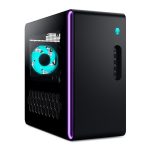
You sit down at your trusty desktop, ready to tackle the day, only to be met with a spinning cursor, agonizingly slow program launches, and a system that feels like it's wading through digital molasses. Just yesterday, it was fine. What changed? This sudden performance plunge is a common and deeply frustrating experience for computer users, signaling that something under the digital hood needs immediate attention.
Understanding why your desktop has abruptly slowed down is crucial not only for restoring productivity but also for protecting your data and hardware. A sudden slowdown is rarely random; it's a symptom with a cause, ranging from simple software glitches to serious hardware failures. This comprehensive guide will walk you through the five most likely culprits behind your desktop's sudden crawl, providing you with the diagnostic steps and actionable solutions to reclaim your computer's speed and stability. You will learn how to identify the problem, apply targeted fixes, and implement habits to prevent future slowdowns.
The Culprit: Background Processes and Software Bloat
The most frequent offender for a sudden slowdown is software activity you cannot see. Background processes, which are programs or tasks running without a visible window, can consume CPU, memory, and disk resources. A sudden spike might occur due to an automatic update for your operating system or a program like an antivirus suite initiating a full system scan. Other times, a program you thought you closed might have minimized to the system tray, continuing to run and drain resources. In 2026, with the proliferation of always-on cloud sync services, AI assistants, and telemetry data collectors, the potential for background clutter is higher than ever.
Software bloat, or the gradual accumulation of programs that launch at startup, compounds this issue. Over time, as you install applications, many add themselves to the startup sequence, ensuring they launch immediately when you boot your computer. This can turn a quick startup into a minutes-long ordeal and leave fewer resources available for the tasks you actually want to perform. A sudden slowdown might be the tipping point where the cumulative effect of these startup items finally overwhelms your system's available RAM and processing threads, making every action feel sluggish.
To tackle this, open your Task Manager (Ctrl+Shift+Esc). Click on the "Processes" tab and sort by CPU, Memory, and Disk to see which applications are currently consuming the most resources. Identify any non-essential processes using high percentages. Next, navigate to the "Startup" tab. Here, you will see every program configured to launch with Windows. Disable any item that is not absolutely essential for your daily workflow, such as media helper apps, hardware utilities you never use, or outdated updaters. This simple step can dramatically improve both boot times and overall system responsiveness.
Storage Drive Overload and Failure
Your desktop's storage drive is its long-term memory, and its health is paramount to system speed. If you are still using a traditional Hard Disk Drive (HDD), it is inherently slower than a Solid State Drive (SSD). A sudden slowdown on an HDD can be a clear sign of disk fragmentation, where files are scattered in pieces across the platter, forcing the read head to work much harder. While Windows automatically defragments on a schedule, a large file operation like video editing or game installation can suddenly create significant fragmentation. More critically, an HDD that is over 85% full will struggle with performance, as the system has less room to create temporary files and manage data efficiently.
For SSDs, the issues are different but equally impactful. SSDs slow down as they near capacity because they rely on free space for a process called "garbage collection" to maintain write speeds. A nearly full SSD will suffer performance degradation. Furthermore, SSDs have a finite lifespan measured in terabytes written (TBW). While modern SSDs are durable, a sudden and severe slowdown, especially accompanied by file corruption or crashes, can be an early warning sign of drive failure. In 2026, advanced S.M.A.R.T. (Self-Monitoring, Analysis and Reporting Technology) diagnostics built into drives can provide clearer warnings before total failure.
Actionable steps begin with checking your drive's free space. Aim to keep at least 15-20% of any drive free. Use the built-in Disk Cleanup tool to remove temporary files, system caches, and old Windows update files. For HDDs, you can run the "Defragment and Optimize Drives" tool. For SSDs, run the "Optimize" function (which triggers the TRIM command). To check for impending hardware failure, use a free utility like CrystalDiskInfo to read your drive's S.M.A.R.T. status. If it shows "Caution" or "Bad," immediately back up your data and prepare to replace the drive.
Malware and Security Threats
A sudden, dramatic slowdown is a classic symptom of a malware infection. Malicious software, including viruses, spyware, ransomware, and cryptominers, operates stealthily in the background. Cryptominers, in particular, are designed to hijack your computer's CPU and GPU resources to generate cryptocurrency for an attacker, directly stealing your system's performance. Other malware may be constantly scanning your files, logging keystrokes, or communicating with a remote server, all of which consume significant system resources and bandwidth, leading to a perceptible lag in everything you do.
The threat landscape in 2026 is more sophisticated than ever, with malware often disguised as legitimate software, bundled with free downloads, or delivered through phishing attacks. It's a mistake to assume you are safe because you "don't visit bad websites." Malvertising (malicious advertising) on reputable sites and supply-chain attacks on common software can compromise even cautious users. A sudden slowdown that coincides with other symptoms—like unfamiliar programs, changed browser homepages, excessive pop-up ads, or unexplained network activity—strongly points toward a security breach.
Your first line of defense is a full system scan with a reputable, updated antivirus and anti-malware program. Do not rely solely on Windows Defender; perform a scan with a dedicated, on-demand scanner like Malwarebytes. Run the scan in Safe Mode if possible, as this prevents most malware from activating and hiding. If malware is found and removed, the performance improvement can be immediate. As a preventative measure, practice skeptical browsing, avoid pirated software, keep all your applications updated to patch security holes, and consider using a standard user account instead of an administrator account for daily tasks to limit malware's potential damage.
Outdated Drivers and Operating System Issues
Drivers are the essential software that allows your operating system to communicate with your hardware components—your graphics card, motherboard chipset, network adapter, and more. Outdated, corrupted, or incompatible drivers can cause severe performance issues, instability, and sudden slowdowns. For example, a faulty graphics driver might cause lag and stuttering in all visual elements, making the entire desktop feel unresponsive. A network driver issue could cause system-wide pauses as processes wait for network timeouts. A sudden slowdown after a Windows Update is often a red flag for a driver compatibility problem.
The operating system itself can also be a source of trouble. While updates are vital for security and features, they can sometimes introduce bugs or conflicts. Furthermore, system files can become corrupted due to improper shutdowns, software conflicts, or failing hardware. The Windows Registry, a vast database of system settings, can become cluttered with invalid entries from improperly uninstalled software, leading to slowdowns and errors. In 2026, AI-assisted update management in Windows helps, but it is not infallible, and manual intervention is sometimes required.
To address driver issues, visit your desktop manufacturer's website or the websites of individual component makers (like NVIDIA, AMD, or Intel) to download and install the latest drivers, especially for your graphics and chipset. Avoid generic "driver updater" software. For OS issues, use built-in Windows troubleshooting tools. Run the System File Checker by opening Command Prompt as Administrator and typing `sfc /scannow` to find and repair corrupted system files. You can also use the `DISM` (Deployment Image Servicing and Management) tool for more advanced repairs. Creating a system restore point before making major changes is always a wise precaution.
Thermal Throttling and Hardware Degradation
Computers generate heat, and they are designed with cooling systems—fans and heatsinks—to manage it. When dust and debris clog air vents and fans, heat builds up inside the case. To prevent permanent damage from overheating, your CPU and GPU will engage in "thermal throttling," which means they deliberately slow down their performance to lower their temperature. This results in a sudden and severe drop in speed, particularly during demanding tasks like gaming or video rendering. If your desktop is suddenly slow and the fans are loudly running at maximum speed, thermal throttling is a likely cause.
Beyond cooling, physical hardware components can degrade or fail. While less common as a "sudden" issue unless there's a final failure, a failing power supply unit (PSU) that can no longer deliver stable, clean power can cause system instability and performance drops. Similarly, a stick of RAM (memory) going bad can lead to system crashes, blue screens, and data corruption, which often manifests as freezing and slowdowns as the system struggles to cope with memory errors. In older systems, the thermal paste between the CPU and its cooler can dry out, losing its ability to conduct heat away efficiently.
The solution for thermal issues is physical cleaning. Power down and unplug your desktop. Open the case in a well-ventilated area and use a can of compressed air to carefully blow dust out of heatsinks, fan blades, vents, and the power supply. Ensure all fans are spinning freely. Monitor your system temperatures using a free tool like HWMonitor or Core Temp; CPU and GPU temperatures should ideally stay below 80-85°C under load. For suspected RAM issues, you can use the Windows Memory Diagnostic tool (search for it in the Start menu) to test for errors. If hardware failure is confirmed, replacing the affected component—be it a $10 fan or a new PSU—is the necessary fix.
Key Takeaways
- ✓ A sudden slowdown is a symptom with a cause, most commonly from runaway background processes, too many startup programs, or a resource-hungry application.
- ✓ A nearly full or failing storage drive (HDD or SSD) is a primary hardware culprit; maintain at least 15-20% free space and monitor drive health.
- ✓ Malware, especially cryptominers, can hijack system resources, making a thorough security scan an essential diagnostic step.
- ✓ Outdated or corrupted drivers and operating system files can create conflicts and bottlenecks; keep drivers updated and use system repair tools.
- ✓ Overheating due to dust buildup causes thermal throttling, forcing your CPU and GPU to slow down; regular physical cleaning is a critical maintenance task.
Frequently Asked Questions
Can too many browser tabs really slow down my entire desktop?
Absolutely, especially in 2026. Modern browsers are incredibly resource-intensive, with each tab often running as its own process. Multiple tabs, particularly those with video, complex web apps, or heavy advertising, can consume gigabytes of RAM and significant CPU cycles. This leaves fewer resources for other applications and the operating system itself, leading to a system-wide slowdown. Try to keep tabs to a minimum and use bookmarking or "read later" services.
I have an SSD, so it can't be a disk problem, right?
Wrong. While SSDs are vastly faster than HDDs, they are not immune to problems. If an SSD is over 90% full, its performance will degrade due to how it manages data. Furthermore, SSDs can fail, and a failing SSD often exhibits severe slowdowns, freezing, and file errors as a precursor to complete failure. Always monitor your SSD's health and free space.
How often should I clean the inside of my desktop?
For most home environments, a thorough cleaning every 6 to 12 months is recommended. If your desktop is on the floor, in a carpeted room, or in a particularly dusty environment, you may need to clean it every 3 to 4 months. Listen to your fans; if they are consistently louder than usual, it's a sign dust buildup is causing them to work harder.
Is it safe to disable all startup programs in Task Manager?
Not all. Critical system processes and your security software should generally remain enabled. It is safe to disable third-party applications like cloud storage sync clients (you can run them manually), communication apps, hardware utility software for peripherals you rarely use, and media helper programs. If you're unsure, a quick web search for the process name can clarify its function.
My desktop is slow only when connected to the internet. Why?
This points to network-related processes. It could be a background app (like OneDrive, Google Drive, or a torrent client) syncing or downloading large files. It could also be a sign of malware communicating with a command server or excessive browser extensions phoning home. Check your network usage in Task Manager's "Performance" tab to see which process is using your bandwidth.
Conclusion
A desktop that grinds to a sudden halt is more than an inconvenience; it's a message from your machine that something needs correction. As we've explored, the root causes typically fall into five key areas: unseen software bloat and processes, storage drive health and capacity, hidden malware infections, outdated or corrupted system software, and physical issues like overheating or hardware failure. By methodically investigating each area—starting with Task Manager and a malware scan, then checking storage and drivers, and finally considering physical maintenance—you can diagnose and resolve the majority of sudden performance problems.
Do not resign yourself to a slow computer. Treat the troubleshooting process as a learning opportunity to better understand your machine. Start with the simplest, least invasive fixes like closing resource-hogs and cleaning up startup items before moving to deeper diagnostics. Regular maintenance, including software updates, disk cleanup, and physical dusting, is the best prophylaxis against future slowdowns. Take action today; your productivity and peace of mind are worth the effort.

Nathaniel Foster is an electronics expert focusing on consumer gadgets, smart devices, and innovative technology. He delivers practical reviews, buying guides, and troubleshooting tips to help readers make informed decisions and get the most out of their electronic products.