If your Mac desktop is off, press the physical power button once and wait for the startup process to begin. On most modern iMac and Mac mini models, the power button is located on the back of the device and may not be immediately visible from the front.
Whether you’re setting up a new Mac, restarting after a shutdown, or troubleshooting a Mac that won’t power on, this guide walks through the exact steps.
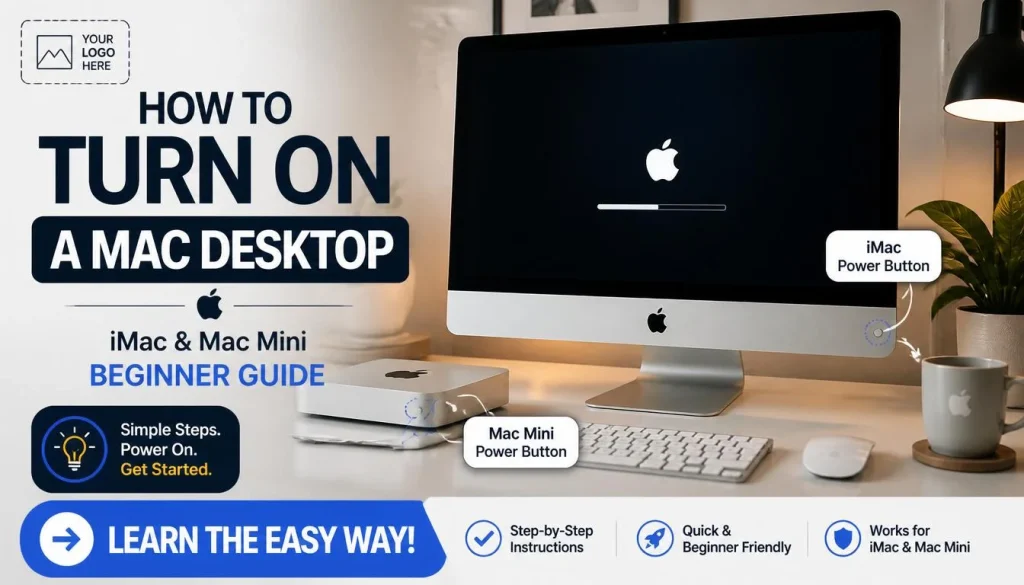
Where Is the Power Button on a Mac Desktop?
The location depends on your Mac model.
| Mac Model | Power Button Location |
|---|---|
| iMac (24-inch, M-series) | Rear bottom-right corner when viewed from the front |
| iMac (Intel models) | Rear lower-left area behind the display |
| Mac mini | Rear side near the power cable |
| Mac Studio | Rear bottom-right corner |
| Mac Pro | Top or rear panel depending on model |
If you cannot see the button, gently feel along the back edge of the device.
How to Turn On an iMac
Step 1: Connect Power
Make sure the power cable is securely connected to:
- The iMac
- A working wall outlet
- A surge protector (if used)
Step 2: Press the Power Button
Press the power button once.
Do not hold it down.
You should notice one or more of these signs:
- Apple logo appears
- Startup chime (on some models)
- Screen lights up
- Keyboard backlight activates
- Fan begins spinning
Step 3: Wait for macOS to Load
Most modern Macs boot within:
| Mac Type | Typical Startup Time |
|---|---|
| Apple Silicon (M1, M2, M3, M4) | 10–30 seconds |
| Intel iMac | 20–60 seconds |
Once startup finishes, you’ll reach:
- Login screen
- Desktop
- Setup Assistant (new Macs)
How to Turn On a Mac Mini
A Mac mini requires an external monitor.
Before Pressing Power
Verify that:
- Power cable is connected
- Monitor is powered on
- HDMI or Thunderbolt cable is connected
Turn On the Mac Mini
- Locate the power button on the back.
- Press it once.
- Wait for the startup screen.
If the monitor remains black, check the monitor input source.
Many users mistakenly leave the display set to the wrong HDMI input.
How to Turn On a Mac Desktop Using the Keyboard
Most Mac desktops cannot be powered on solely from a keyboard when completely shut down.
However, some recent Apple Silicon Macs automatically start when:
- Power is connected
- A key is pressed after shutdown
- A connected accessory wakes the system
This behavior varies by model and macOS version.
If nothing happens, use the physical power button.
What Happens After You Turn On a Mac Desktop?
A normal startup sequence looks like this:
- Power button pressed
- Apple logo appears
- Progress bar loads
- Login screen appears
- macOS desktop loads
If startup stops at any stage, a hardware or software issue may exist.
What to Do If Your Mac Desktop Won’t Turn On
Check the Power Connection
Start with the basics.
Verify:
- Wall outlet works
- Power cable is fully inserted
- Surge protector is switched on
- No visible cable damage
A surprising number of startup issues come from loose power connections.
Check for Signs of Power
Look for:
- Fan noise
- Keyboard lighting
- Startup sound
- Display backlight
If any of these occur, the Mac may be running but the display could be the problem.
Test Another Power Outlet
Plug the Mac directly into a different outlet.
Avoid extension cords during testing.
Disconnect Accessories
Remove:
- USB hubs
- External drives
- Printers
- Thunderbolt docks
A faulty peripheral can occasionally interfere with startup.
Wait Several Minutes
If macOS recently installed updates, startup may take longer than usual.
Do not repeatedly press the power button during this process.
Why Is My Mac Desktop Showing a Black Screen?
A black screen doesn’t always mean the Mac is off.
Common causes include:
| Problem | Possible Fix |
|---|---|
| Display brightness at minimum | Increase brightness |
| Monitor input incorrect | Select correct HDMI/DisplayPort input |
| External monitor issue | Test another cable |
| macOS startup issue | Restart Mac |
| Power issue | Check power source |
For Mac mini users, display problems are often mistaken for power problems.
How to Force Restart a Mac Desktop
Use this only when the Mac is frozen.
- Press and hold the power button.
- Continue holding for approximately 10 seconds.
- Release the button.
- Wait a few seconds.
- Press the power button again.
This performs a forced shutdown and restart.
How to Tell Whether Your Mac Is Sleeping or Turned Off
Many users think their Mac is off when it’s actually sleeping.
Sleeping Mac
- Screen is black
- Power remains connected
- Pressing a key wakes the computer
Shut Down Mac
- No active processes
- Requires startup process
- Power button usually needed
Try pressing a key or clicking the mouse before assuming the Mac is powered off.
What If a New Mac Desktop Won’t Turn On?
If you just unboxed a new iMac or Mac mini:
- Verify all cables are connected correctly.
- Connect directly to wall power.
- Wait a minute after plugging in.
- Press the power button once.
If the Mac still shows no response, contact Apple Support or visit an authorized service provider.
A brand-new Mac should display the Setup Assistant shortly after startup.
Quick Reference
| Task | Action |
|---|---|
| Turn on iMac | Press rear power button once |
| Turn on Mac mini | Press rear power button once |
| Force restart | Hold power button for 10 seconds |
| Wake from sleep | Press keyboard key or click mouse |
| Black screen after startup | Check display connection and input source |
| No power at all | Verify outlet and power cable |
FAQ
Where is the power button on an iMac?
On most modern iMac models, the power button is located on the back of the display near the lower-right corner when viewed from the front.
How do I turn on a Mac mini without a keyboard?
Press the physical power button on the rear of the Mac mini. A keyboard is not required for startup.
Why won’t my Mac desktop turn on?
Common causes include a loose power cable, faulty outlet, disconnected monitor, startup issues, or hardware failure.
Can a Mac desktop turn on automatically?
Some Apple Silicon Macs can automatically power on after power is connected or when certain accessories are used.
How long does a Mac desktop take to start?
Most Apple Silicon Macs start within 10–30 seconds, while older Intel-based Macs may take longer.
Why is my Mac on but the screen is black?
The display connection, monitor input selection, brightness settings, or macOS startup process may be causing the issue.
How do I know if my Mac is sleeping instead of turned off?
Press a key on the keyboard or click the mouse. If the Mac wakes immediately, it was in sleep mode rather than fully powered off.
Brief Closing
For most iMac and Mac mini models, turning on the Mac is as simple as pressing the rear power button once and waiting for macOS to load. If nothing happens, start by checking power connections and display settings before moving on to more advanced troubleshooting.

Nathaniel Foster is an electronics expert focusing on consumer gadgets, smart devices, and innovative technology. He delivers practical reviews, buying guides, and troubleshooting tips to help readers make informed decisions and get the most out of their electronic products.