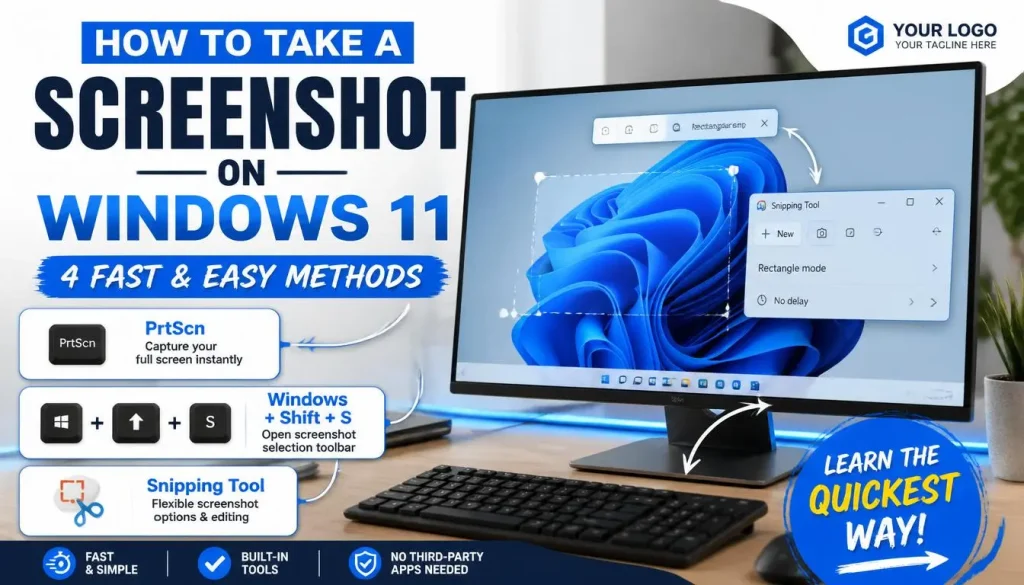
If you need a screenshot of your desktop, the fastest method is to press Windows + Print Screen. Windows captures your entire desktop and automatically saves the image to Pictures > Screenshots.
If you need more control such as capturing only part of the screen, a single window, or a specific monitor Windows 11 includes several built-in tools that work better than the standard Print Screen key.
How Do You Screenshot Your Entire Desktop?
The most reliable way to capture your entire desktop on Windows 11 is:
| Shortcut | What It Does | Where It Saves |
|---|---|---|
| Windows + PrtScn | Captures entire desktop and saves automatically | Pictures\Screenshots |
| PrtScn | Copies entire desktop to clipboard | Clipboard only |
| Windows + Fn + PrtScn | Same as Windows + PrtScn on some laptops | Pictures\Screenshots |
Steps
- Open the desktop or screen you want to capture.
- Press Windows + PrtScn.
- The screen briefly dims.
- Open File Explorer.
- Navigate to:
C:\Users\YourUsername\Pictures\Screenshots- Your screenshot appears as:
Screenshot (1).png
Screenshot (2).png
This method works in Windows 11 22H2, 23H2, and newer releases.
How to Screenshot Only Part of Your Desktop
Sometimes you don’t want everything on screen.
Windows 11 includes Snipping Tool, which lets you capture only the area you need.
Shortcut
Windows + Shift + SSteps
- Press Windows + Shift + S.
- The screen darkens.
- Choose one of the capture modes:
- Rectangular Snip
- Freeform Snip
- Window Snip
- Full-screen Snip
- Drag over the area you want.
- The screenshot is copied to your clipboard.
- Click the notification preview to edit or save it.
This is often the best option when creating tutorials, support documentation, or blog content.
How to Screenshot a Single Window
If your desktop contains multiple open applications, capturing only one window keeps the image cleaner.
Shortcut
Alt + PrtScnSteps
- Click the window you want to capture.
- Press Alt + PrtScn.
- The screenshot is copied to the clipboard.
- Open Paint, Word, Outlook, or another app.
- Press Ctrl + V to paste.
- Save the image.
This prevents other desktop elements from appearing in the screenshot.
How to Screenshot Multiple Monitors
Windows treats all connected displays as one large desktop.
Method
Press:
Windows + PrtScnThe screenshot includes:
- Primary monitor
- Secondary monitor
- Third monitor (if connected)
The resulting image captures the full desktop layout across all displays.
Capture Only One Monitor
Use:
Windows + Shift + SThen drag over the monitor you want to capture.
This gives you more control and avoids large image files.
How to Use the Snipping Tool for Better Screenshots
Many users rely solely on Print Screen, but the Snipping Tool offers features that make screenshots easier to manage.
Open Snipping Tool
Search:
Snipping Toolfrom the Start menu.
Useful Features
| Feature | Purpose |
|---|---|
| Delayed Capture | Take screenshots after a countdown |
| Annotation Tools | Add arrows and notes |
| Crop Tool | Remove unnecessary areas |
| Auto Save | Save screenshots directly |
| OCR Text Extraction | Copy text from images |
Recent Windows 11 versions have significantly improved the Snipping Tool, making third-party screenshot software unnecessary for most users.
Where Are Desktop Screenshots Saved?
The save location depends on the capture method.
| Method | Save Location |
|---|---|
| Windows + PrtScn | Pictures\Screenshots |
| PrtScn | Clipboard |
| Alt + PrtScn | Clipboard |
| Windows + Shift + S | Clipboard until manually saved |
| Snipping Tool | User-selected location |
Default folder:
C:\Users\YourUsername\Pictures\ScreenshotsIf you cannot find your screenshots, search File Explorer for:
Screenshotor
*.pngWhat to Do If the Print Screen Key Isn’t Working
A common problem is pressing Print Screen and seeing nothing happen.
Check Whether Screenshots Are Going to the Clipboard
Press:
PrtScnThen open Paint and paste using:
Ctrl + VIf the image appears, the key is working correctly.
Enable Print Screen Shortcut
Windows 11 can assign the Print Screen key to Snipping Tool.
Go to:
Settings
→ Accessibility
→ Keyboard
→ Use the Print Screen key to open screen capture
Toggle it on or off depending on your preference.
Try the Function Key
Many laptops require:
Fn + PrtScnor
Windows + Fn + PrtScnCheck Keyboard Software
Manufacturers such as:
- Dell
- HP
- Lenovo
sometimes remap function keys through their keyboard utilities.
Review your keyboard settings if shortcuts suddenly stop working.
Why Is My Screenshot Black?
A black screenshot usually occurs when:
- Capturing DRM-protected video
- Screenshotting some streaming services
- Using outdated graphics drivers
- Running certain games in exclusive fullscreen mode
Examples include some content from:
- Netflix
- Disney
These services intentionally block screenshots of protected content.
In those cases, the screenshot method is working correctly—the content itself is protected.
Do You Need a Third-Party Screenshot Tool?
Most people do not.
Windows 11’s built-in tools cover:
- Full desktop captures
- Partial screenshots
- Window captures
- Timed captures
- Annotation
- Text extraction
If you regularly create tutorials or documentation, these tools may be worth considering:
| Tool | Best For |
|---|---|
| ShareX | Advanced automation and workflows |
| Greenshot | Lightweight screenshot editing |
| Snagit | Professional documentation |
For most users, however, the built-in Snipping Tool is sufficient.
Quick Reference
| Task | Shortcut |
|---|---|
| Screenshot entire desktop and save | Windows + PrtScn |
| Screenshot entire desktop to clipboard | PrtScn |
| Screenshot active window | Alt + PrtScn |
| Screenshot selected area | Windows + Shift + S |
| Open Snipping Tool | Search “Snipping Tool” |
| Paste clipboard screenshot | Ctrl + V |
| Default screenshot folder | Pictures\Screenshots |
FAQ on Take a Screenshot of Your Desktop on Windows 11
How do I take a screenshot of only my desktop background?
Minimize all open windows using:
Windows + DThen press:
Windows + PrtScnWhere do Windows 11 screenshots go automatically?
Screenshots taken with Windows + PrtScn are stored in:
Pictures\ScreenshotsCan I screenshot one monitor instead of all monitors?
Yes. Press:
Windows + Shift + Sand select only the monitor area you want.
Why doesn’t Print Screen save my screenshot?
The key may only be copying the image to the clipboard. Open Paint and press Ctrl + V to verify.
How do I screenshot a window without showing the desktop?
Click the target window and press:
Alt + PrtScnDoes Windows 11 have a built-in screenshot tool?
Yes. The Snipping Tool is included with Windows 11 and supports full-screen, window, rectangular, and delayed captures.
Can I take screenshots during video playback?
Usually yes, but some DRM-protected content blocks screenshots and may result in a black image.
Closing
For most situations, Windows + PrtScn is the fastest way to take a screenshot of your desktop and save it automatically. If you need more precision, use Windows + Shift + S, which gives you control over exactly what appears in the screenshot.

Nathaniel Foster is an electronics expert focusing on consumer gadgets, smart devices, and innovative technology. He delivers practical reviews, buying guides, and troubleshooting tips to help readers make informed decisions and get the most out of their electronic products.