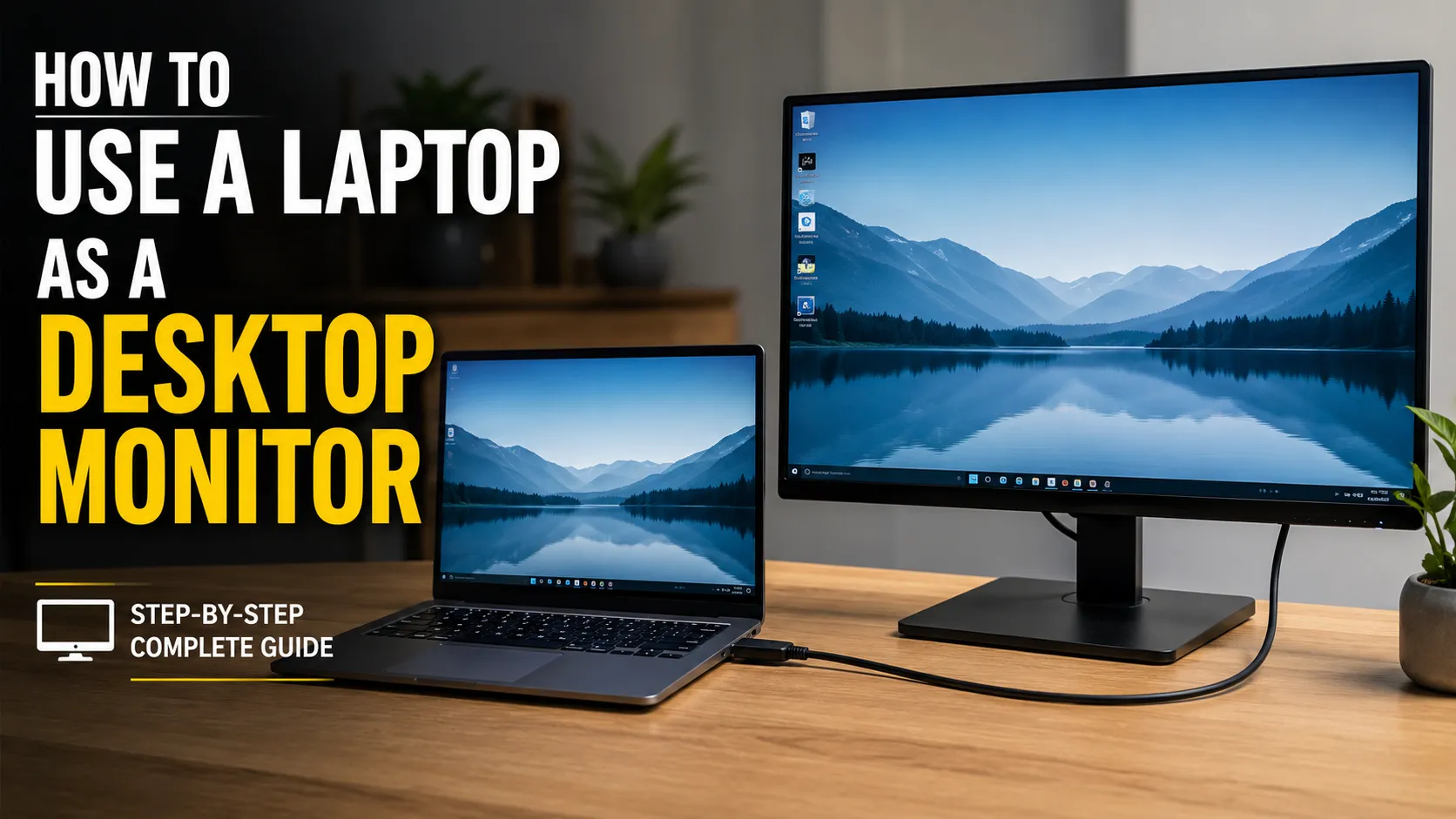
when you need more workspace but do not have an external monitor nearby. However, turning a laptop into a monitor is not always as simple as connecting an HDMI cable.
Most laptops are designed to send video to another display, not receive video from a desktop computer. As a result, the best method depends on what you are trying to achieve, which operating systems you use and whether you need a wireless display, a wired video feed or full remote control.
This guide explains how to use a laptop as a desktop monitor using Windows Wireless Display, spacedesk, an HDMI capture card, Remote Desktop and cross-platform alternatives. It also covers HDMI, USB-C, no-Wi-Fi setups, broken-monitor situations and the most common connection problems.
Can You Use a Laptop as a Monitor for a Desktop PC?
Yes, you can use a laptop screen to display content from a desktop PC, but the connection method matters.
For most Windows users, the easiest free option is to turn the laptop into a wireless display. You can then mirror the desktop screen or extend the Windows desktop across both devices.
Other practical options include:
- Using spacedesk over Wi-Fi or Ethernet
- Connecting an HDMI capture card
- Accessing the desktop through Remote Desktop software
- Using AirPlay when both computers are compatible Macs
- Using browser-based screen-sharing software for cross-platform setups
A standard HDMI cable usually does not work because most laptop HDMI ports are output-only. Dell, for example, states that its laptops and desktops use HDMI-out rather than HDMI-in. A small number of specialist or older gaming laptops may have HDMI input, but you should check the exact model specifications before attempting a direct connection. Answer
The best way to use a laptop as a desktop monitor is to enable Wireless Display on the receiving Windows laptop, open Projecting to this PC, and connect from the desktop by pressing Windows + K.
If the computers do not support Miracast, use spacedesk over the same local network. For a wired video connection, connect the desktop’s HDMI output to a USB capture card attached to the laptop.
Choose the Right Method
| Your situation | Recommended method | Extra hardware | Internet required? | Best use |
|---|---|---|---|---|
| Windows 11 desktop and Windows laptop | Wireless Display | No | No | General productivity |
| Miracast is unavailable | spacedesk | No | No | Extended workspace |
| You want a stable network connection | spacedesk over Ethernet | Ethernet cable | No | Office use |
| The desktop has no working monitor | Capture card or temporary TV | Usually yes | No | Setup and troubleshooting |
| You need to view an HDMI signal | HDMI capture card | Yes | No | Video feed and temporary display |
| You want to control the desktop remotely | Remote Desktop software | No | Depends on software | Remote access |
| You have two compatible Macs | AirPlay to Mac | No | Local network usually required | Mirroring or supported extension |
| You need the lowest possible latency | Dedicated monitor | Yes | No | Gaming and creative work |
Understand Mirror, Extend and Remote Access
Before setting up the connection, decide what you want the laptop to do.
Duplicate or Mirror
Mirroring displays the same content on both screens. It is useful for presentations, demonstrations and situations where another person needs to see what is happening on the desktop.
Extend
Extending creates additional workspace. You can keep a browser on one screen and a document, video editor, communication app or spreadsheet on the other.
For most productivity users, Extend is the best display mode.
Remote Access
Remote access lets you view and control the desktop computer from the laptop. It is useful when the desktop is in another room or does not have its own keyboard and mouse.
Remote Desktop is not always the same as adding a true second monitor. It may show or replace the existing desktop session rather than creating additional screen space.
Video Capture
A capture card receives the desktop’s HDMI signal and displays it inside software on the laptop. This works differently from Wireless Display because the laptop is viewing a captured video feed rather than becoming a native Windows monitor.
What You Need Before You Begin
Depending on the method, you may need:
- A Windows 11 desktop PC
- A Windows 11 or compatible Windows laptop
- Wi-Fi enabled on both devices
- A shared local network
- An Ethernet cable
- An HDMI cable
- A USB HDMI capture card
- Updated graphics and network drivers
- Administrator access for installing optional features or software
- A temporary TV or external monitor for initial setup
- Remote-access software that was configured in advance
You do not normally need an active internet connection for Wireless Display or spacedesk. However, you may need internet access to download drivers, applications or the Wireless Display optional feature.
Method 1: Use Windows Wireless Display
Windows Wireless Display is usually the best place to start when both devices run compatible versions of Windows.
It uses Miracast to project from one Windows computer to another. Microsoft’s current instructions require the receiving PC to have the Wireless Display optional feature installed and its projection settings enabled. 1: Check Whether Both Computers Support Miracast
On the desktop PC:
- Press Windows + R.
- Type
dxdiag. - Press Enter.
- Select Save All Information.
- Open the saved text file.
- Search for Miracast.
You may see a message such as:
- Miracast: Available
- Miracast: Available, with HDCP
- Miracast: Not Supported
You can also press Windows + K. If Windows opens a casting panel without displaying a compatibility warning, the computer may support wireless projection.
Microsoft recommends checking Miracast support, turning on Wi-Fi and updating device drivers when troubleshooting wireless display connections. 2: Install Wireless Display on the Laptop
Perform these steps on the laptop that will become the monitor:
- Open Settings.
- Select System.
- Open Projecting to this PC.
- Find the option to add the Wireless Display optional feature.
- Select Optional features.
- Choose View features or Add an optional feature.
- Search for Wireless Display.
- Select it and click Next.
- Click Install.
- Restart the laptop if Windows requests it.
The wording may vary slightly depending on your current Windows 11 build.
Step 3: Enable Projecting to This PC
Return to:
Settings > System > Projecting to this PC
Configure the available options. A practical home setup is:
- Allow projection on secure networks
- Ask to project every time
- Require a PIN for additional security
- Make the laptop available while connected to power
Avoid allowing unrestricted projection when using public, shared or untrusted networks.
Step 4: Open the Wireless Display App
Search the Start menu for:
- Wireless Display
- Connect
- Wireless Display app
Open the available receiving app and leave it running on the laptop.
The laptop should now be ready to receive a connection.
Step 5: Connect from the Desktop PC
On the desktop:
- Turn on Wi-Fi.
- Press Windows + K.
- Wait for the laptop’s name to appear.
- Select the laptop.
- Accept the connection request on the laptop.
- Enter a PIN if one is displayed.
- Allow input control if you want to use the laptop’s keyboard or touchpad.
The first connection may take longer than later connections.
Step 6: Change from Duplicate to Extend
Once connected:
- Press Windows + P on the desktop.
- Select Extend.
- Open Settings > System > Display.
- Select Identify to see which screen is 1 and which is 2.
- Drag the display boxes so they match the physical positions of your devices.
- Select Apply.
You should now be able to move windows between the desktop monitor and laptop screen.
Step 7: Adjust Resolution and Scale
In Display settings, select the laptop display and adjust:
- Display resolution
- Display orientation
- Scale
- Refresh rate, where available
- Main-display preference
Use the recommended resolution first. If text appears too small, increase the scale rather than lowering the resolution.
When Wireless Display Is the Best Choice
Use Wireless Display when:
- Both computers support Miracast
- You want a free solution
- You need a true extended Windows desktop
- You are doing office work, browsing, research or communication
- A small amount of delay is acceptable
When Wireless Display Is Not Ideal
Avoid relying on it when:
- You need to see the BIOS or boot menu
- The desktop has no configured display
- You are playing competitive games
- You are performing colour-critical editing
- The Wi-Fi environment is congested
- Either computer does not support Miracast
Method 2: Use spacedesk over Wi-Fi or Ethernet
spacedesk is a popular alternative when Wireless Display is unavailable or unreliable. It creates an additional Windows display over a local network.
The desktop runs the spacedesk driver, while the laptop runs the spacedesk Viewer. The official spacedesk documentation supports several connection types, including direct Ethernet, Ethernet through a router, Wi-Fi, USB tethering and USB-to-Ethernet networking. 1: Install the spacedesk Driver on the Desktop
The desktop is the primary machine.
- Download the correct spacedesk driver for the desktop’s Windows version.
- Run the installer.
- Accept the licence terms.
- Complete the installation.
- Allow spacedesk through Windows Firewall when prompted.
- Restart the desktop if required.
- Open the spacedesk Driver Console.
- Confirm that the server is enabled.
Only install the driver on the desktop whose screen you want to share.
Step 2: Install spacedesk Viewer on the Laptop
The laptop is the secondary machine.
- Install spacedesk Viewer from the Microsoft Store or the official source.
- Open the Viewer.
- Allow local-network access if prompted.
- Wait for the desktop computer to appear.
The official manual confirms that the Windows 10/11 Viewer is available through the Microsoft Store. 3: Connect Both Devices to the Same Network
You can use:
- The same Wi-Fi router
- A direct Ethernet connection
- Ethernet through a router or network switch
- A mobile hotspot created by one computer
- USB tethering in supported configurations
- USB-to-Ethernet adapters
An internet connection is not necessary as long as both devices can communicate through the same local network.
Step 4: Connect the Laptop to the Desktop
On the laptop:
- Open spacedesk Viewer.
- Select the detected desktop.
- Click Connect.
- Wait for Windows to create the additional display.
If the desktop is not discovered automatically, enter its local IP address manually.
Step 5: Configure the Display
On the desktop:
- Open Settings > System > Display.
- Select Extend these displays.
- Click Identify.
- Arrange the display positions.
- Choose the preferred resolution and scale.
- Apply the settings.
Improve spacedesk Performance
For a smoother connection:
- Use direct Ethernet where possible
- Use 5 GHz or 6 GHz Wi-Fi instead of a crowded 2.4 GHz network
- Move both devices closer to the router
- Pause cloud backups and large downloads
- Lower the secondary display resolution
- Reduce image quality in the Viewer settings
- Update graphics and network drivers
- Connect both computers to power
- Set the Windows network profile to Private on a trusted home network
The spacedesk manual ranks direct Ethernet as its strongest connection option, followed by Ethernet through a router, while ordinary Wi-Fi through network equipment may offer lower performance. spacedesk Not Detecting the Desktop
Try the following:
- Confirm that the spacedesk server is enabled.
- Make sure both devices are on the same local network.
- Change the trusted network profile from Public to Private.
- Allow spacedesk through Windows Firewall.
- Disconnect any VPN temporarily.
- Restart the driver console.
- Enter the desktop’s IP address manually.
- Try Ethernet, a hotspot or USB tethering.
The official troubleshooting guidance notes that changing a trusted network from Public to Private can resolve discovery problems in some cases. d 3: Use an HDMI Capture Card
An HDMI capture card is the most practical wired solution when you need to receive the desktop’s HDMI output on a laptop that has no HDMI input.
Why a Normal HDMI Cable Usually Does Not Work
A video connection requires one device to send the signal and another device to receive it.
Desktop graphics cards normally provide HDMI output. Laptop HDMI ports also normally provide output. Connecting two output ports does not create a video connection.
The ports may look identical, but their directions are different:
- HDMI-out: Sends video to a monitor, television or projector
- HDMI-in: Receives video from a computer, console or camera
Check the laptop manual for the words HDMI input, HDMI-in or video input. Do not assume the port supports input simply because an HDMI cable fits.
What You Need
You will need:
- An HDMI cable
- A USB HDMI capture card
- A USB 3.x port where possible
- Capture software such as OBS Studio
- A keyboard and mouse connected to the desktop
Connection Layout
Desktop HDMI output → HDMI cable → Capture card → Laptop USB port
Step-by-Step Setup
- Connect the capture card to the laptop.
- Allow Windows to install the device driver.
- Connect one end of the HDMI cable to the desktop graphics output.
- Connect the other end to the capture card’s HDMI input.
- Open OBS Studio or another capture application on the laptop.
- Add a new Video Capture Device.
- Select the capture card.
- Choose the supported resolution and frame rate.
- Open the preview in full-screen mode.
The desktop’s video output should appear inside the capture application.
Important Capture Card Limitations
A capture card does not normally create a native extended Windows monitor. Instead, it displays the desktop signal as video inside an application.
Other limitations may include:
- Noticeable input delay
- Reduced image quality
- Limited frame rates on inexpensive cards
- Audio configuration problems
- No control from the laptop keyboard unless separate software is used
- HDCP-protected content may not display
- BIOS or pre-boot video support can vary by card and hardware
A capture card is suitable for temporary access, troubleshooting, presentations and general desktop work. It is less suitable for competitive gaming.
Method 4: Use Remote Desktop Software
Remote Desktop is useful when your main goal is to operate the desktop computer from the laptop rather than create an additional screen.
Possible tools include:
- Windows Remote Desktop
- Chrome Remote Desktop
- AnyDesk
- RustDesk
- Parsec
- Other trusted remote-access applications
How Remote Access Works
The desktop runs a host or server application. The laptop connects as a client and displays the desktop session.
Depending on the software, you may be able to:
- Use the laptop keyboard and touchpad
- Transfer files
- Copy and paste between computers
- Access the desktop from another room
- Connect through a local network or the internet
- Change display quality to reduce delay
Basic Setup Process
- Install or enable the selected remote-access tool on the desktop.
- Configure a secure password, PIN or account.
- Install the client application on the laptop.
- Connect using the desktop’s device name, ID or IP address.
- Approve the connection.
- Adjust resolution, image quality and input settings.
Remote Desktop vs a Second Monitor
Remote Desktop and display extension solve different problems.
| Feature | Remote Desktop | Extended monitor |
|---|---|---|
| Control the desktop from the laptop | Yes | Sometimes |
| Create extra workspace | Usually no | Yes |
| Work through the internet | Often | Usually no |
| Show the BIOS | No | Hardware-dependent |
| Use the laptop keyboard | Yes | Method-dependent |
| Suitable for remote support | Yes | No |
| Suitable for dual-screen work | Limited | Yes |
Use Remote Desktop when control is more important than adding a second workspace.
Method 5: Use a MacBook as a Monitor
A MacBook cannot normally receive video through its HDMI, Thunderbolt or USB-C port as though it were a standard monitor.
However, compatible Apple devices can use AirPlay to stream or mirror content to a Mac. Apple describes AirPlay Receiver as a way to use a Mac as a display or speaker for content from another Mac, iPhone or iPad. le AirPlay Receiver on the MacBook
On the receiving Mac:
- Open the Apple menu.
- Select System Settings.
- Open General.
- Select AirDrop & Handoff.
- Turn on AirPlay Receiver.
- Choose who is allowed to connect.
On the sending Mac:
- Open Control Centre.
- Select Screen Mirroring.
- Choose the receiving Mac.
- Approve the connection if prompted.
- Open Display settings to review the available display options.
Available capabilities depend on the Mac models, macOS versions and application support.
Connect a Windows Desktop to a MacBook
A normal HDMI or USB-C cable is unlikely to turn a MacBook into a direct Windows monitor.
Instead, use:
- Remote Desktop software
- Browser-based screen sharing
- A cross-platform display application
- An HDMI capture card
- A dedicated external monitor
How to Use a Laptop as a Monitor When the Desktop Has No Working Monitor
This is one of the most difficult situations because most software methods require Windows to be running and configured before the laptop can connect.
If the desktop has never been prepared for Wireless Display, spacedesk or Remote Desktop, you may not be able to activate those options without seeing its screen.
Option 1: Use a Television Temporarily
Connect the desktop to a television using HDMI. Configure Wireless Display, spacedesk or Remote Desktop, and then move to the laptop-based setup.
This is often the simplest option.
Option 2: Borrow a Monitor
A temporary monitor can help you:
- Complete Windows setup
- Install drivers
- Enable remote access
- Configure network settings
- Test the graphics output
- Set the correct screen resolution
Option 3: Use an HDMI Capture Card
A capture card may let you view the desktop output inside the laptop. Its ability to display the BIOS, boot screen or installation environment depends on the capture hardware and desktop output.
Option 4: Use Previously Configured Remote Access
If Remote Desktop or another remote-access tool was already enabled, connect from the laptop using the stored device details.
Option 5: Use a Preconfigured Headless Setup
Advanced users may configure Windows to start remote-access or display-sharing software automatically. This should be completed while a working monitor is available.
Can a Laptop Show the Desktop BIOS?
Wireless Display, spacedesk and ordinary Remote Desktop usually start after Windows and the necessary drivers have loaded. Therefore, they generally cannot show:
- The motherboard logo
- BIOS or UEFI settings
- Early boot errors
- Operating-system installation screens
- Some recovery environments
For reliable pre-boot access, use a real monitor, compatible capture device, hardware-based remote management or a specialised KVM solution.
Can You Use a Laptop as a Monitor with USB or USB-C?
A normal USB cable does not automatically carry desktop video to a laptop screen.
USB-C makes the situation more confusing because the same connector can support different features. A USB-C port may support:
- Basic data transfer
- Charging
- Power delivery
- DisplayPort Alt Mode output
- Thunderbolt
- A combination of these features
Even when a laptop USB-C port supports video, it usually supports video output, not video input. Some laptop ports support data only and cannot drive an external display at all. Dell’s documentation, for example, notes that capabilities vary and that some USB-C ports do not support video output or power delivery. a USB-to-HDMI Adapter Solve the Problem?
Usually not.
Most USB-to-HDMI adapters are designed to send video from a computer to a monitor. They do not receive the desktop’s HDMI output.
For video input, use a product specifically described as an:
- HDMI capture card
- USB video capture device
- HDMI-to-USB capture device
Can spacedesk Work Through USB?
spacedesk can use supported USB-based network connections, such as USB tethering or USB-to-Ethernet. This is different from sending raw video through an ordinary USB cable. Its direct USB support also varies by client platform. o Use a Laptop as a Monitor Without Wi-Fi or Internet
You do not need the internet to use a laptop as a monitor, but some methods require a local connection between the computers.
Use Direct Ethernet
Connect both computers using Ethernet.
Modern network adapters usually handle the connection automatically. If they do not communicate immediately, you may need to configure network sharing or local IP addresses.
Direct Ethernet is one of the strongest options for spacedesk because it can provide lower delay and more consistent performance than congested Wi-Fi. Ethernet Through a Router
Connect the desktop and laptop to the same router or switch using Ethernet cables. They can communicate locally even if the router has no active internet service.
Create a Local Hotspot
One computer can create a mobile hotspot, and the other can join it. This establishes a local network without relying on a separate home router.
Use an HDMI Capture Card
A capture card does not require Wi-Fi, a router or internet access. It receives video directly from the desktop through HDMI.
Use USB Tethering or USB-to-Ethernet
Some software can operate across a network connection created through USB tethering or USB-to-Ethernet adapters. Compatibility depends on the devices and software.
Can You Use a Laptop as a Monitor Without a Capture Card?
Yes, when the operating systems have already loaded and the computers support a software-based connection.
Use:
- Windows Wireless Display for compatible Windows computers
- spacedesk for a network-based extended display
- Remote Desktop for control
- AirPlay for compatible Apple devices
- Cross-platform screen-sharing software
You may still need a capture card or real monitor when:
- The desktop has no configured display
- You need BIOS access
- Windows will not start
- The desktop is being assembled
- You need a direct HDMI feed
- Wireless and network connections are unavailable
How to Turn an Old Laptop into a Second Monitor
An old laptop can work well as a second screen for email, messaging, music controls, reference documents, system monitoring or dashboards.
Check the Old Laptop First
Confirm that it has:
- A working screen
- A supported operating system
- A functional Wi-Fi or Ethernet adapter
- Enough performance to decode the display stream
- A reliable charger
- Updated graphics and network drivers
- Adequate ventilation
Use a Lower Resolution
An older laptop may perform better at:
- 1280 × 720
- 1600 × 900
- 1920 × 1080 with reduced quality
Avoid forcing a high resolution if the connection becomes slow or unstable.
Prefer Ethernet
Ethernet reduces the work required from an older wireless adapter and may improve stability.
Keep the Laptop Plugged In
Wireless display and video decoding can consume significant power. Adjust the sleep settings so the laptop does not disconnect during use.
Watch for Heat
Clean blocked air vents and place the laptop on a hard, ventilated surface. Avoid using it on a bed or soft material that restricts airflow.
Using a Windows 10 Laptop as a Monitor
The process on Windows 10 is broadly similar:
- Open Settings.
- Select System.
- Open Projecting to this PC.
- Install or enable the Wireless Display feature.
- Open the Connect app.
- Connect from the main PC.
- Select Extend or Duplicate.
However, Microsoft ended standard support for Windows 10 on 14 October 2025. A Windows 10 laptop may continue to function, but using an unsupported operating system can increase security and compatibility risks unless the device is covered by an applicable Extended Security Updates programme. mputer that regularly connects to the internet, upgrading to a supported operating system is preferable where the hardware allows it.
How to Use the Laptop Keyboard and Touchpad with the Desktop
Displaying the desktop and controlling it are separate functions.
Wireless Display Input
During a Wireless Display connection, Windows may offer an option to allow keyboard, mouse, touch or pen input from the receiving device.
Accept this only when you trust the other computer.
Remote Desktop
Remote-access tools normally send laptop keyboard and touchpad input directly to the desktop session.
Software KVM
A software keyboard-and-mouse sharing application can let one keyboard and mouse move between computers. This is useful when the laptop remains a separate computer rather than acting solely as a display.
Hardware KVM
A hardware KVM switch can share physical input devices between computers, but it does not normally turn the laptop screen into a monitor.
Wired vs Wireless: Which Method Is Best?
| Feature | Wireless Display | spacedesk | Capture card | Remote Desktop |
|---|---|---|---|---|
| Free to start | Yes | Usually | No | Often |
| Creates extended workspace | Yes | Yes | Usually no | Usually no |
| Requires Miracast | Yes | No | No | No |
| Requires local networking | Wireless link | Yes | No | Usually |
| Works without internet | Yes | Yes | Yes | Sometimes |
| Can show pre-boot output | No | No | Sometimes | No |
| Supports laptop input | Sometimes | Configuration-dependent | No | Yes |
| Additional hardware needed | No | No | Yes | No |
| Good for gaming | Limited | Limited | Limited | Limited |
| Good for productivity | Yes | Yes | Acceptable | Yes |
For ordinary office work, start with Wireless Display. If it is unavailable, use spacedesk. Choose a capture card only when you specifically need a wired video feed.
Best Settings for a Smooth Connection
Use a Faster Local Network
Use Ethernet or a strong 5 GHz/6 GHz Wi-Fi connection where available.
Match the Resolution to the Laptop
Select the laptop’s recommended native resolution. Reduce it if performance is poor.
Adjust Scaling Separately
Windows can apply different scaling levels to each screen. A smaller laptop may need 125% or 150% scaling even when the desktop monitor uses 100%.
Turn Off Unnecessary HDR
HDR can cause compatibility, colour or black-screen problems in some remote-display setups. Disable it temporarily while troubleshooting.
Stop Background Transfers
Pause:
- Cloud synchronisation
- Game downloads
- System updates
- Large file transfers
- High-resolution streaming
Update Drivers
Install current drivers for:
- Graphics hardware
- Wi-Fi
- Ethernet
- Capture devices
- Chipset components
Keep Both Computers Awake
Change sleep settings while the laptop is used as a monitor. Keep both devices connected to power for longer sessions.
Troubleshooting Common Problems
Projecting to This PC Is Missing or Greyed Out
Try these steps:
- Confirm that Wi-Fi is enabled.
- Install the Wireless Display optional feature.
- Restart Windows.
- Check Miracast support.
- Update graphics and wireless drivers.
- Install pending Windows updates.
- Confirm that the laptop is not restricted by organisational policy.
Wireless Display Will Not Install
Possible fixes include:
- Restarting the computer
- Checking the internet connection
- Installing pending Windows updates
- Running Windows Update troubleshooting
- Repairing Windows system files
- Confirming that optional features are not blocked by an administrator
- Temporarily disabling a VPN
The Desktop Does Not Support Miracast
Use one of these alternatives:
- spacedesk
- Remote Desktop
- HDMI capture card
- Dedicated monitor
A software update cannot add Miracast when the required graphics or wireless hardware is missing.
The Laptop Does Not Appear After Pressing Windows + K
Check that:
- Wireless Display is open on the laptop
- Projection is allowed
- Wi-Fi is enabled on both computers
- The laptop is discoverable
- Both devices are nearby
- The receiving laptop is awake
- Current drivers are installed
Restart both devices and try again.
The Screen Is Black
Try:
- Press Windows + Ctrl + Shift + B to restart the graphics driver.
- Disconnect and reconnect.
- Choose Duplicate before switching to Extend.
- Disable HDR.
- Set a lower resolution.
- Update the graphics driver.
- Restart the receiving application.
- Check whether Windows detached the secondary display.
For spacedesk, the official troubleshooting documentation recommends checking whether the display is detached and reviewing the display mode in the Driver Console. Connection Is Laggy
Improve performance by:
- Using Ethernet
- Moving closer to the router
- Switching to a less congested Wi-Fi band
- Lowering resolution
- Reducing stream quality
- Closing background applications
- Disconnecting unnecessary network devices
- Updating the network adapter driver
Some delay is normal because the image must be processed, transmitted and displayed.
The Screen Is Blurry
Use the laptop’s recommended resolution and adjust Windows scaling. Avoid stretching a low-resolution stream across a high-resolution display.
The Screen Is Cropped or Misaligned
Open Display settings and:
- Select the correct resolution
- Check orientation
- Rearrange the display boxes
- Review scaling
- Reconnect after applying changes
Audio Plays Through the Wrong Device
Open:
Settings > System > Sound
Choose the preferred output device, such as:
- Desktop speakers
- Headphones
- Laptop speakers
- HDMI audio device
Capture software may also have separate audio-monitoring settings.
The Connection Stops When the Laptop Sleeps
Change the laptop’s sleep and power settings. You may also need to stop Windows from turning off the network adapter to save power.
Is a Laptop Screen Suitable for Gaming?
A laptop screen used through Wireless Display, spacedesk, Remote Desktop or a capture card is not ideal for competitive gaming.
Possible problems include:
- Input lag
- Video compression
- Reduced refresh rate
- Frame drops
- Network instability
- Delayed audio
- Inconsistent image quality
It may be acceptable for slower games, management games, turn-based titles or casual play. A dedicated monitor connected directly to the graphics card remains the better option for fast action and competitive gaming.
Advantages of Using a Laptop as a Monitor
- Reuses equipment you already own
- Provides extra workspace
- Helps during temporary monitor failure
- Supports portable setups
- Reduces the immediate need to purchase a monitor
- Works well for documents, email and communication
- Gives an old laptop a practical purpose
Disadvantages
- Setup can be more complicated than using a monitor
- Wireless methods may introduce delay
- Most laptop video ports cannot receive input
- Software methods usually do not work before Windows starts
- Image quality may be compressed
- The laptop consumes additional power
- Updates or network changes can interrupt the connection
- Gaming and colour-critical work may be difficult
Laptop as a Monitor vs a Portable Monitor
| Feature | Laptop as a monitor | Portable monitor |
|---|---|---|
| Initial cost | Low if already owned | Requires a purchase |
| Setup | May require software | Usually plug and play |
| Latency | Possible | Usually minimal |
| Pre-boot display | Limited | Usually available |
| Power consumption | Higher | Often lower |
| Portability | Moderate | High |
| Keyboard included | Yes | No |
| Gaming suitability | Limited | Better |
| Image consistency | Connection-dependent | More predictable |
A laptop is a useful temporary or budget-conscious solution. A portable monitor is better when you need reliable performance, simple connectivity and low latency.
Final Recommendation
For most people learning how to use a laptop as a desktop monitor, the recommended order is:
- Try Windows Wireless Display.
- Use spacedesk if Miracast is unavailable.
- Connect through Ethernet if Wi-Fi performance is poor.
- Use Remote Desktop when control is more important than extra workspace.
- Use an HDMI capture card when you need a wired video feed.
- Use a real monitor when you need BIOS access, minimal latency or dependable gaming performance.
Do not begin by buying random HDMI, USB-C or USB-to-HDMI adapters. First identify whether you need video input, display extension or remote control. Choosing the correct method will save time and prevent unnecessary purchases.
Frequently Asked Questions
Can I use my laptop as a monitor for my desktop PC?
Yes. On compatible Windows computers, enable Wireless Display on the laptop and connect from the desktop using Windows + K. You can also use spacedesk, Remote Desktop or an HDMI capture card.
Can I connect a desktop to a laptop with an HDMI cable?
Only when the laptop has a genuine HDMI input. Most laptop HDMI ports are output-only, so a standard cable between the desktop and laptop usually will not work.
Can I use a laptop as the only monitor for a desktop?
It is possible, but initial setup can be difficult. Wireless Display and display-sharing applications normally require Windows to be running and configured. A temporary television, monitor or compatible capture card may be necessary.
Can I use a laptop as a monitor without Wi-Fi?
Yes. You can use spacedesk over Ethernet, connect through a local router without internet, use supported USB networking or use an HDMI capture card.
Can I use a laptop as a monitor without internet?
Yes. Wireless Display and local-network display tools do not necessarily require internet access. The devices only need the appropriate direct or local-network connection.
Can I use a USB cable to turn my laptop into a monitor?
Not with an ordinary USB cable alone. You need compatible software using USB networking, a supported direct-USB feature or an HDMI-to-USB capture device.
Does USB-C allow video input on a laptop?
Usually not. Many USB-C ports provide data, charging or video output, but they are not designed to receive another computer’s display signal.
Can I use an old laptop as a second monitor?
Yes, provided the screen, network adapter and operating system still work. Lowering the resolution and using Ethernet can improve performance on older hardware.
Can a laptop display the desktop BIOS?
Software methods such as Wireless Display, spacedesk and Remote Desktop normally cannot show the BIOS because they start after the operating system loads. A monitor, compatible capture card or hardware remote-management system is required.
Is Remote Desktop the same as extending a display?
No. Remote Desktop normally lets you view and control a desktop session. A display-extension tool creates extra workspace that functions as an additional monitor.
Is spacedesk free?
Availability and licensing can change, so check its current official terms before commercial or organisational use. Its Viewer and installation resources are available through the official website and supported app stores.
Will using a laptop as a monitor cause lag?
It can. Wireless and network-based connections require video processing and transmission. Ethernet, lower resolution and reduced image quality can decrease delay.
Can I use my laptop keyboard and touchpad to control the desktop?
Yes, when the selected method supports input forwarding. Remote Desktop normally supports it, and Windows Wireless Display may offer an option to allow input from the receiving laptop.
Can I use a MacBook as a monitor for a Windows desktop?
Not as a standard wired monitor through HDMI or USB-C. Use remote-access software, compatible cross-platform screen-sharing software or an HDMI capture card.
Is a laptop screen good for desktop gaming?
It is suitable for some casual games, but the additional latency makes it a poor choice for competitive or fast-paced gaming. A directly connected monitor provides better responsiveness.

Nathaniel Foster is an electronics expert focusing on consumer gadgets, smart devices, and innovative technology. He delivers practical reviews, buying guides, and troubleshooting tips to help readers make informed decisions and get the most out of their electronic products.